




Product highlights

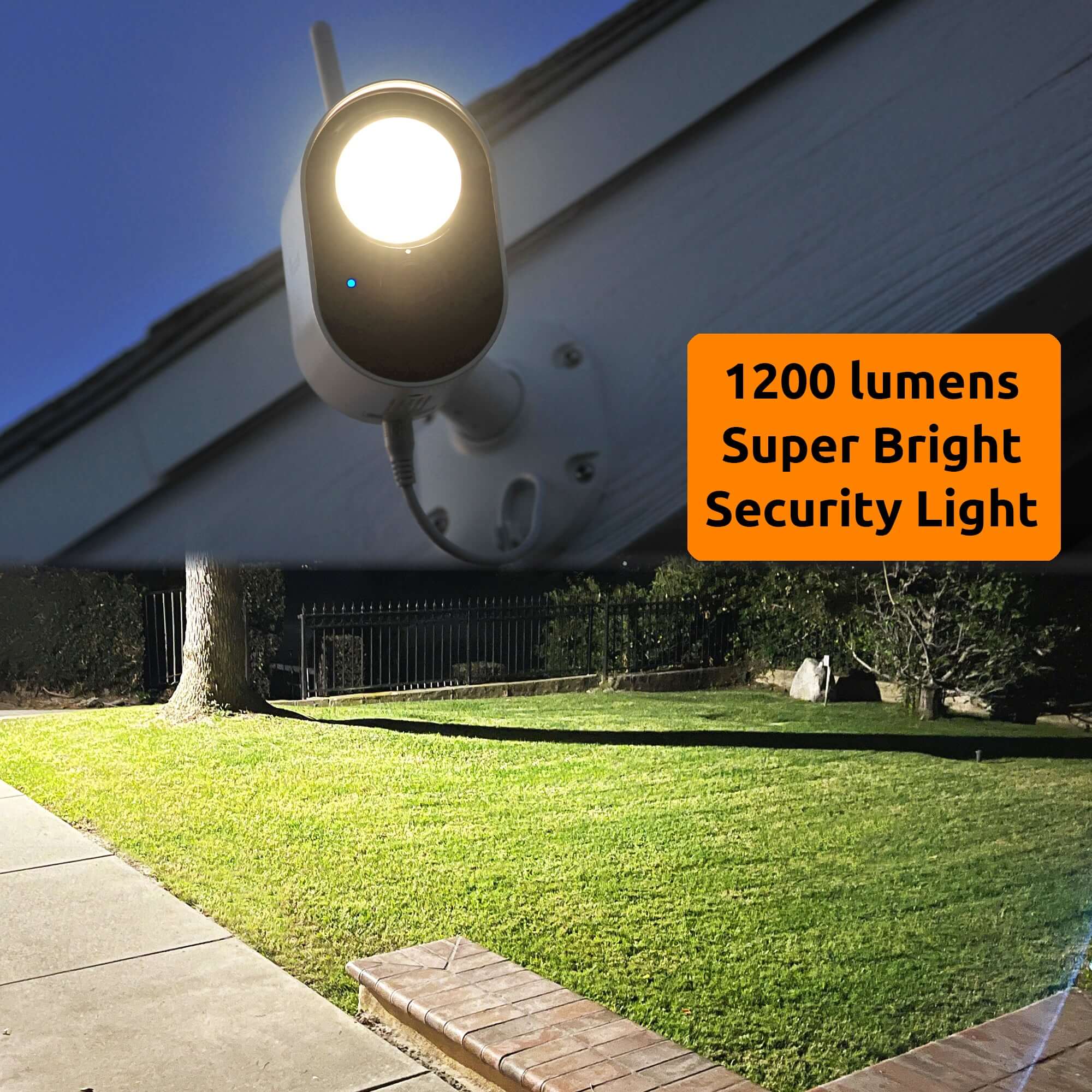
Super Bright 1200Lm

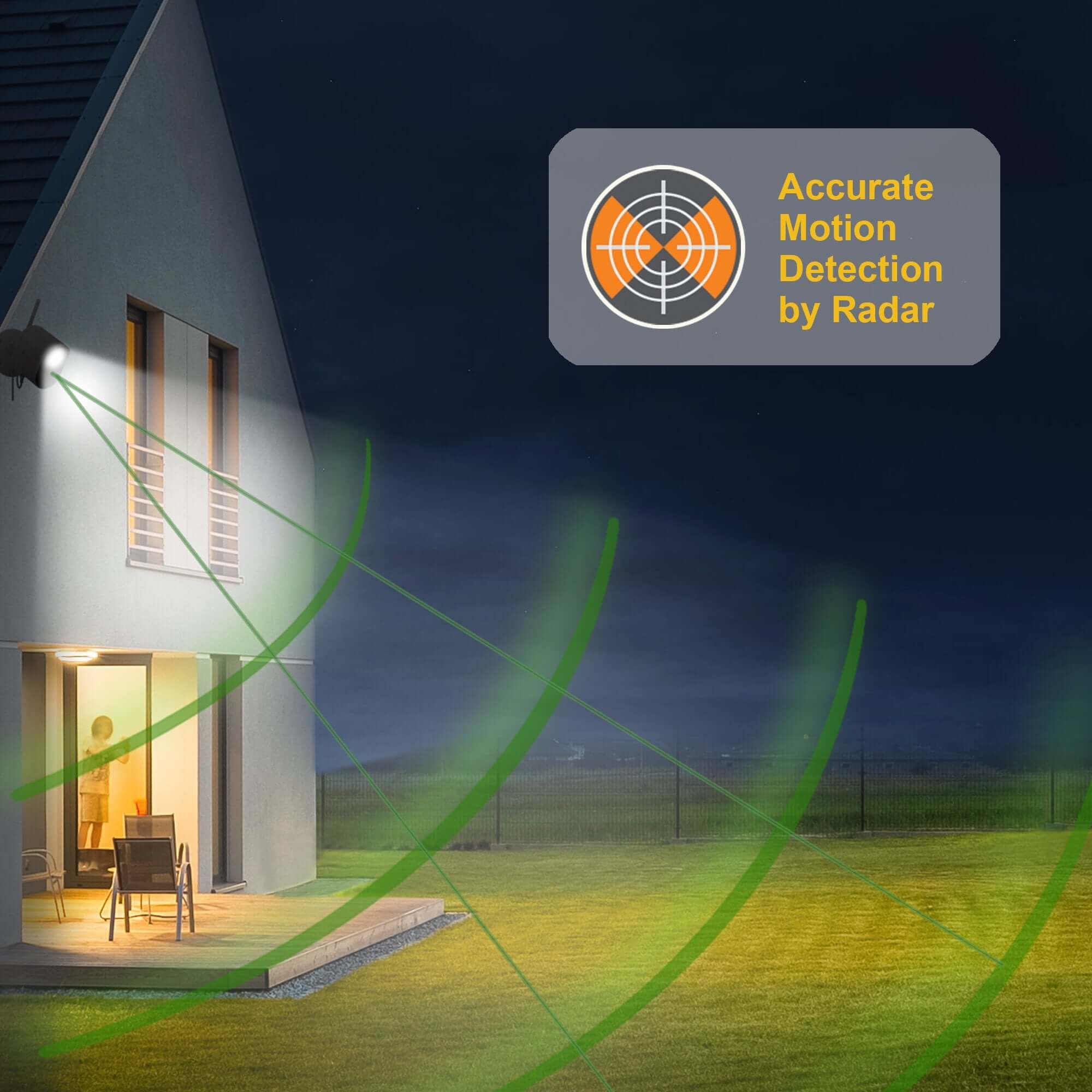
Radar Motion Detection

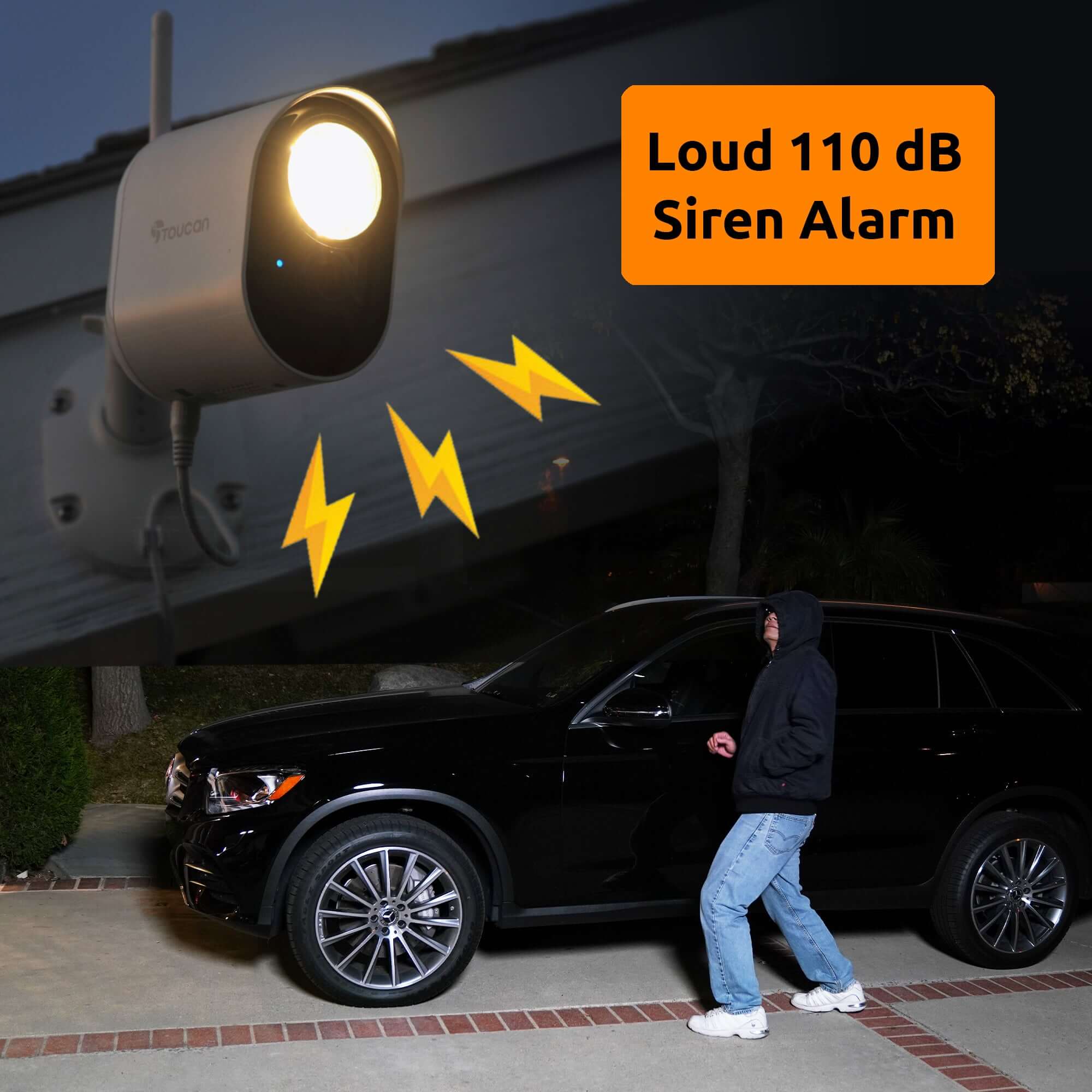
110dB Siren

Night Vision

Video History

Video Encryption
Floodlight Security Camera – Toucan 1080p HD, 1200-Lumen LED
Sale price$59.00Regular price
$99.99
SKU: TSLC10WU
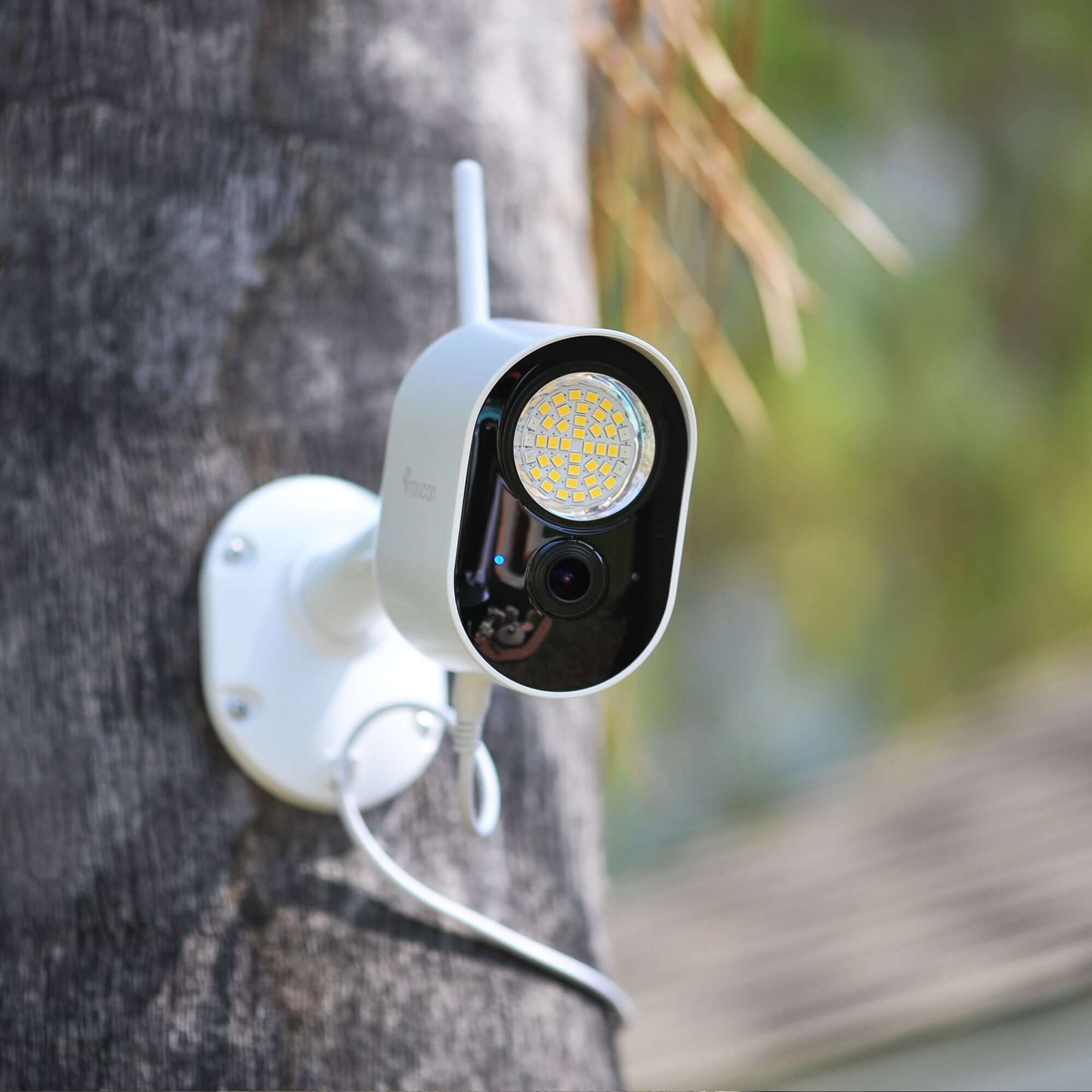
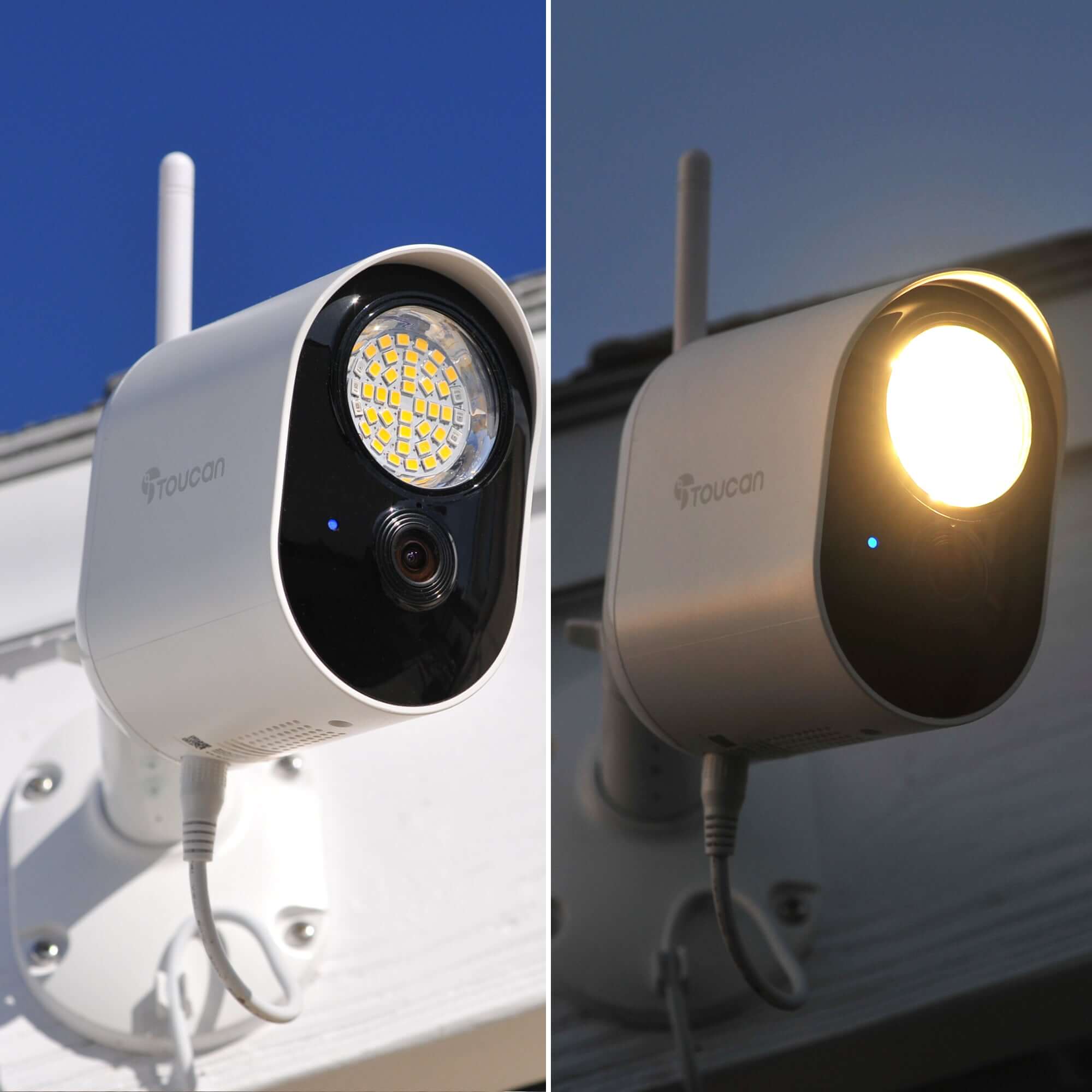
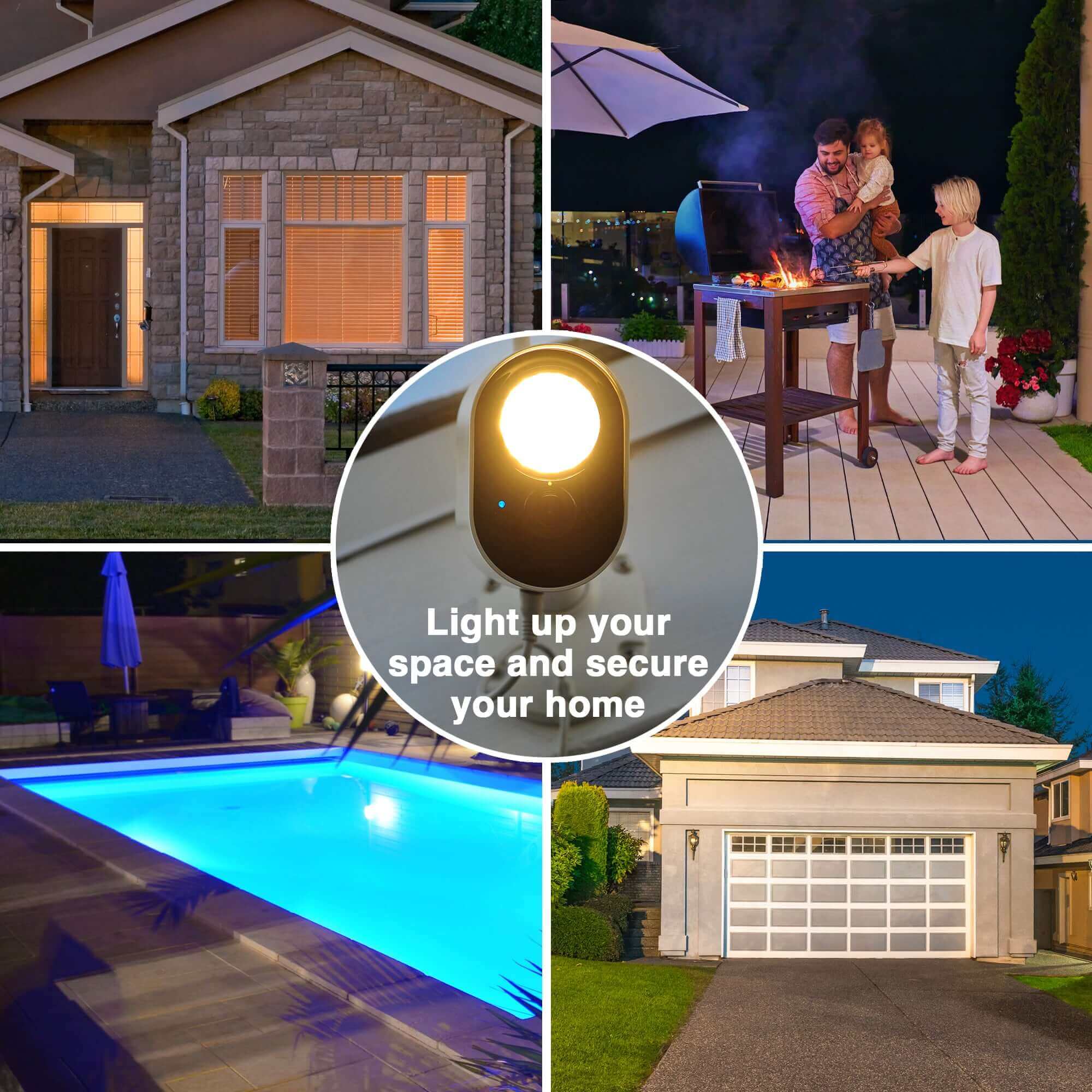
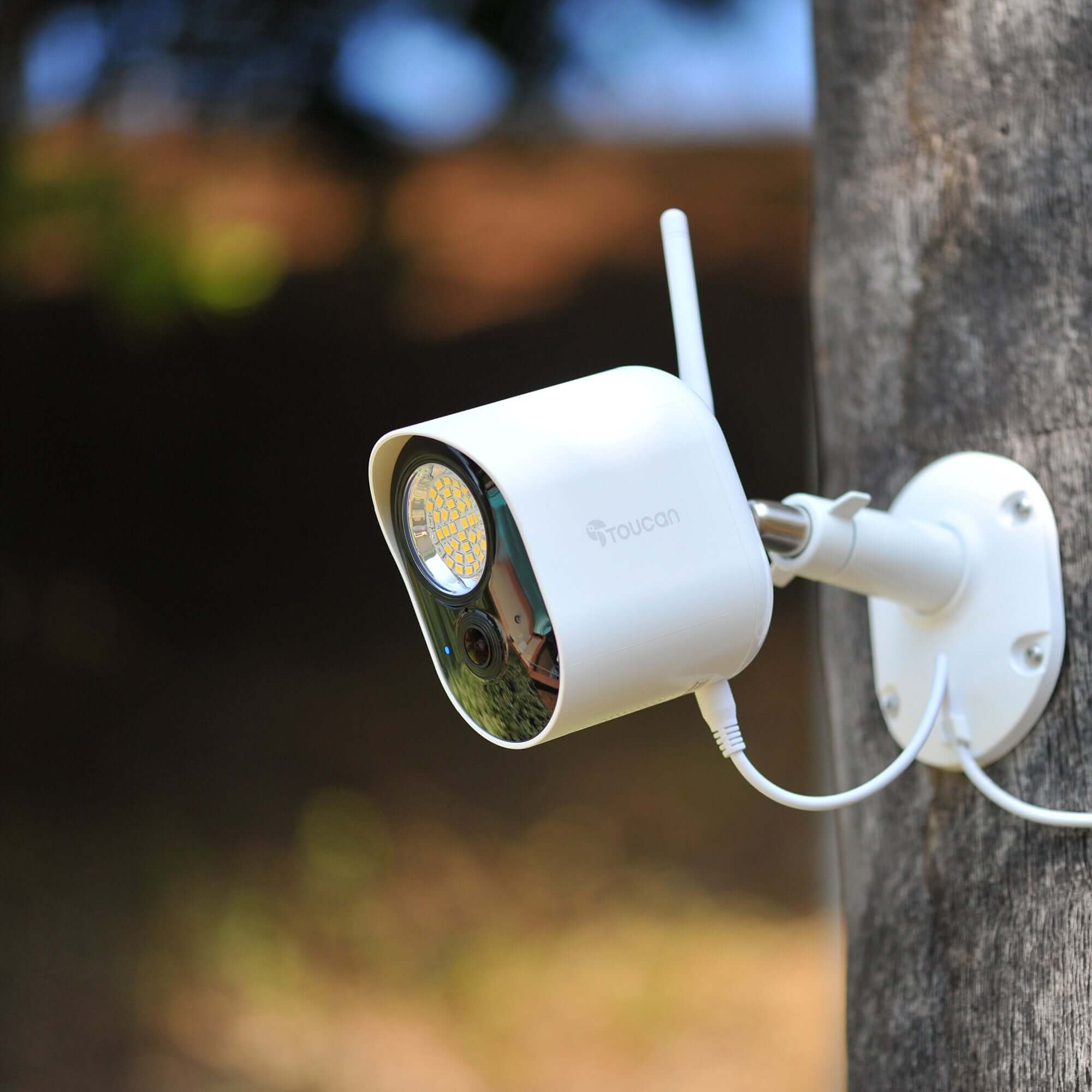
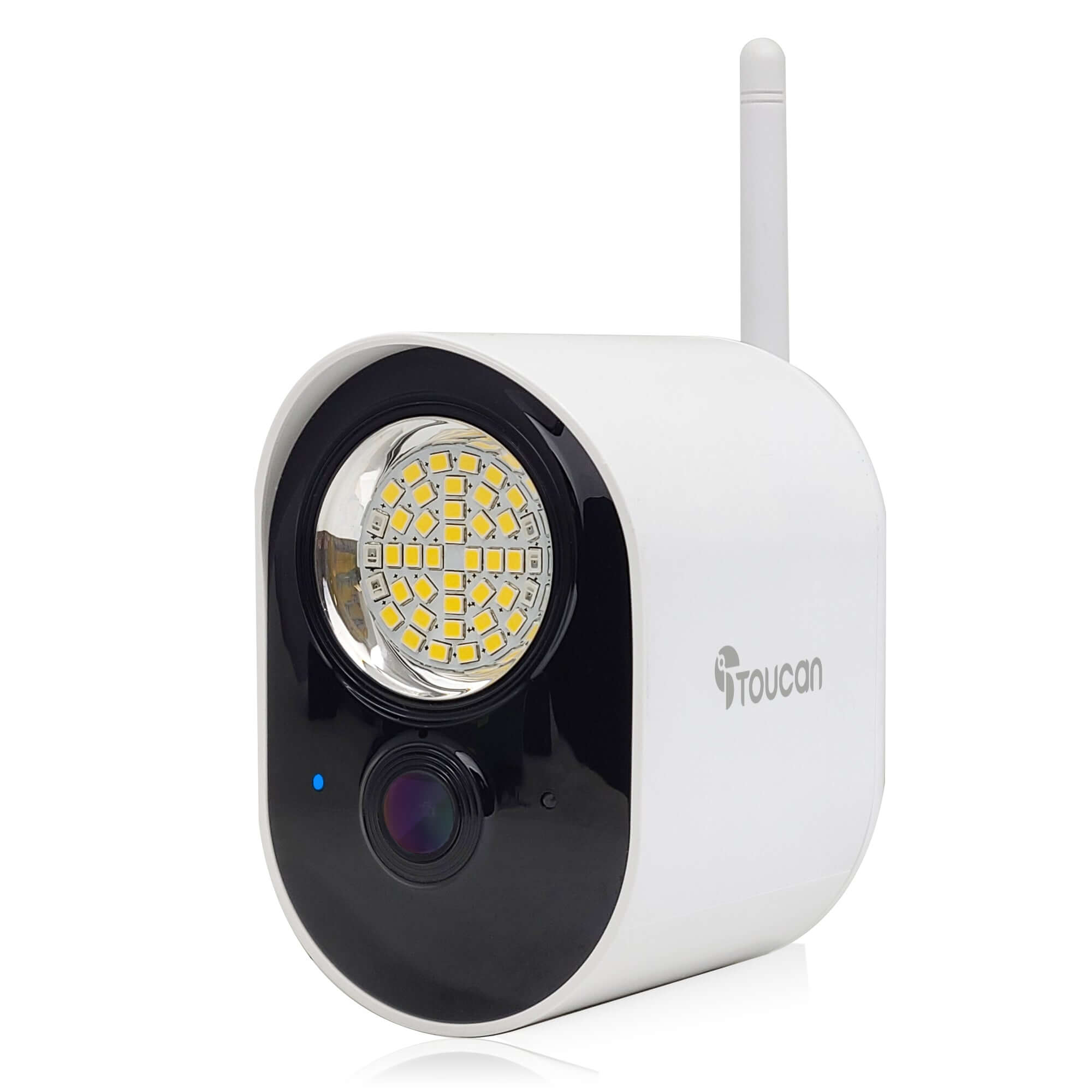
The Toucan floodlight security camera combines 1200-lumen outdoor lighting with 1080p HD video monitoring. Check driveways, garages, backyards and entrances through the Toucan Smart Home App.
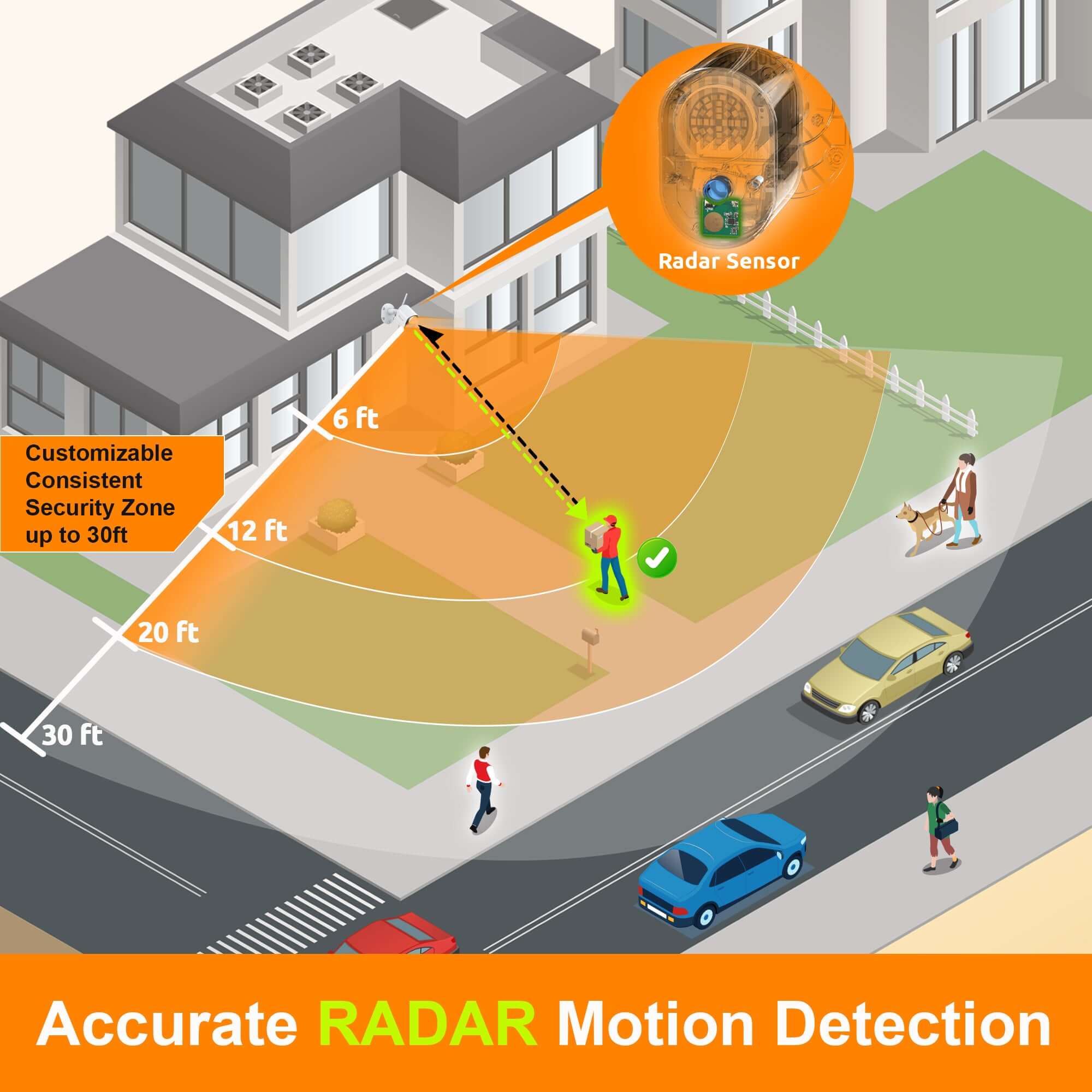
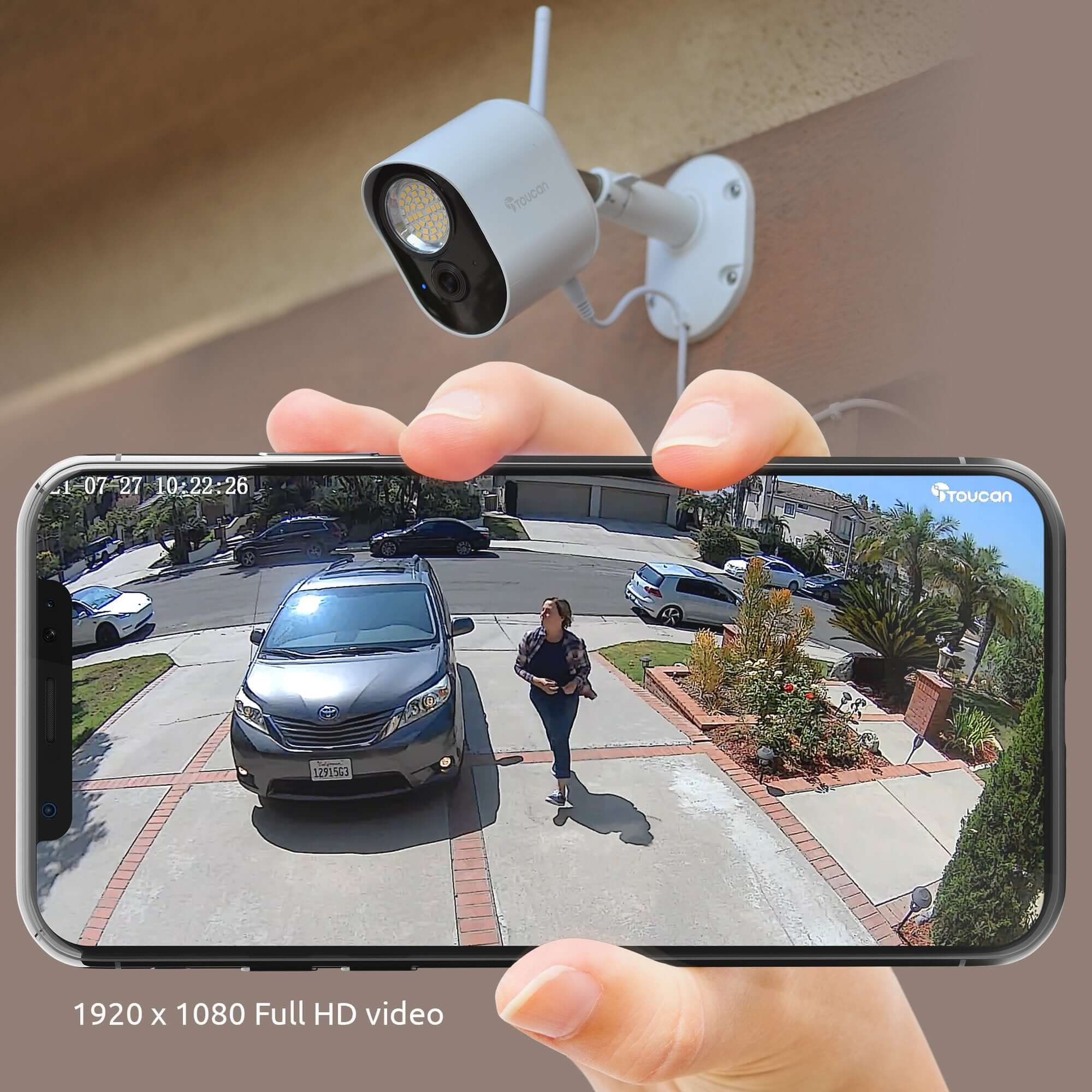
Capture clear 1080p Full HD video with a 146° wide-angle view while the adjustable 1200-lumen LED light illuminates the surrounding area. Accurate radar motion detection sends activity alerts to your phone, while customizable motion zones help you focus monitoring on the areas that matter most.
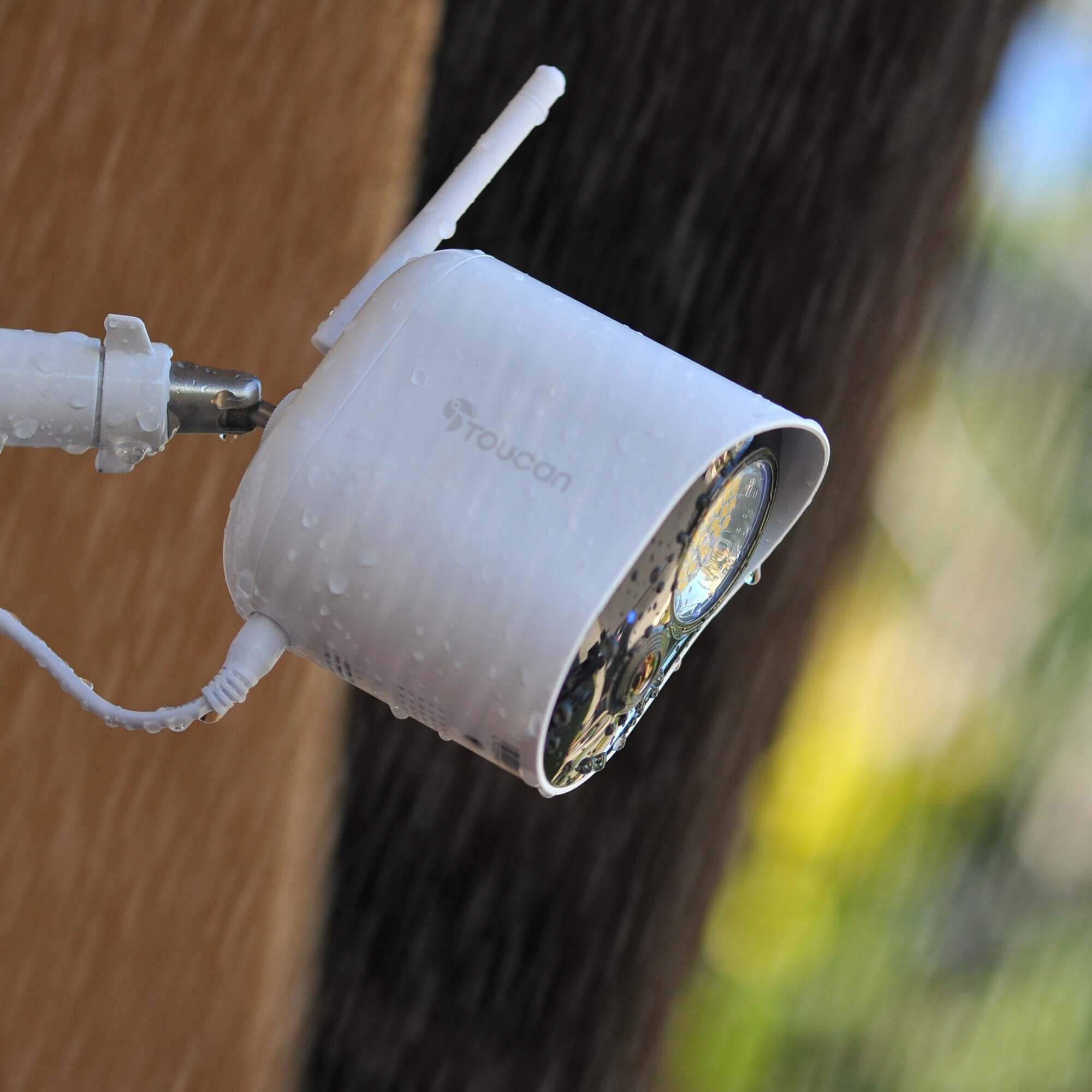
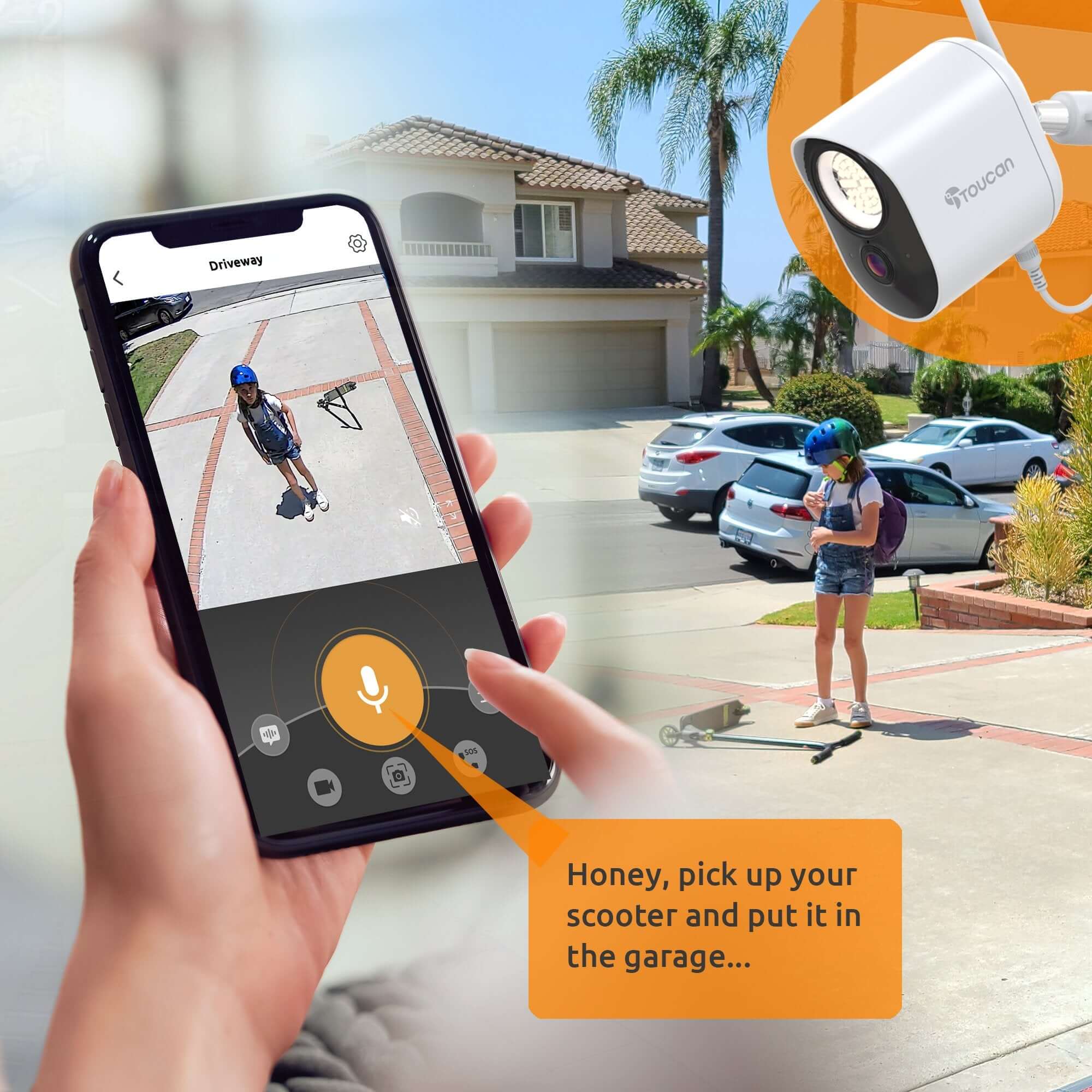
Use two-way talk to communicate with visitors, activate the built-in 110 dB siren and flashing light when additional deterrence is needed, or use a pre-recorded response directly through the app. Night vision supports monitoring after dark, while the IP56 weather-resistant design is built for outdoor installations.
Plug-in power with Wi-Fi connectivity
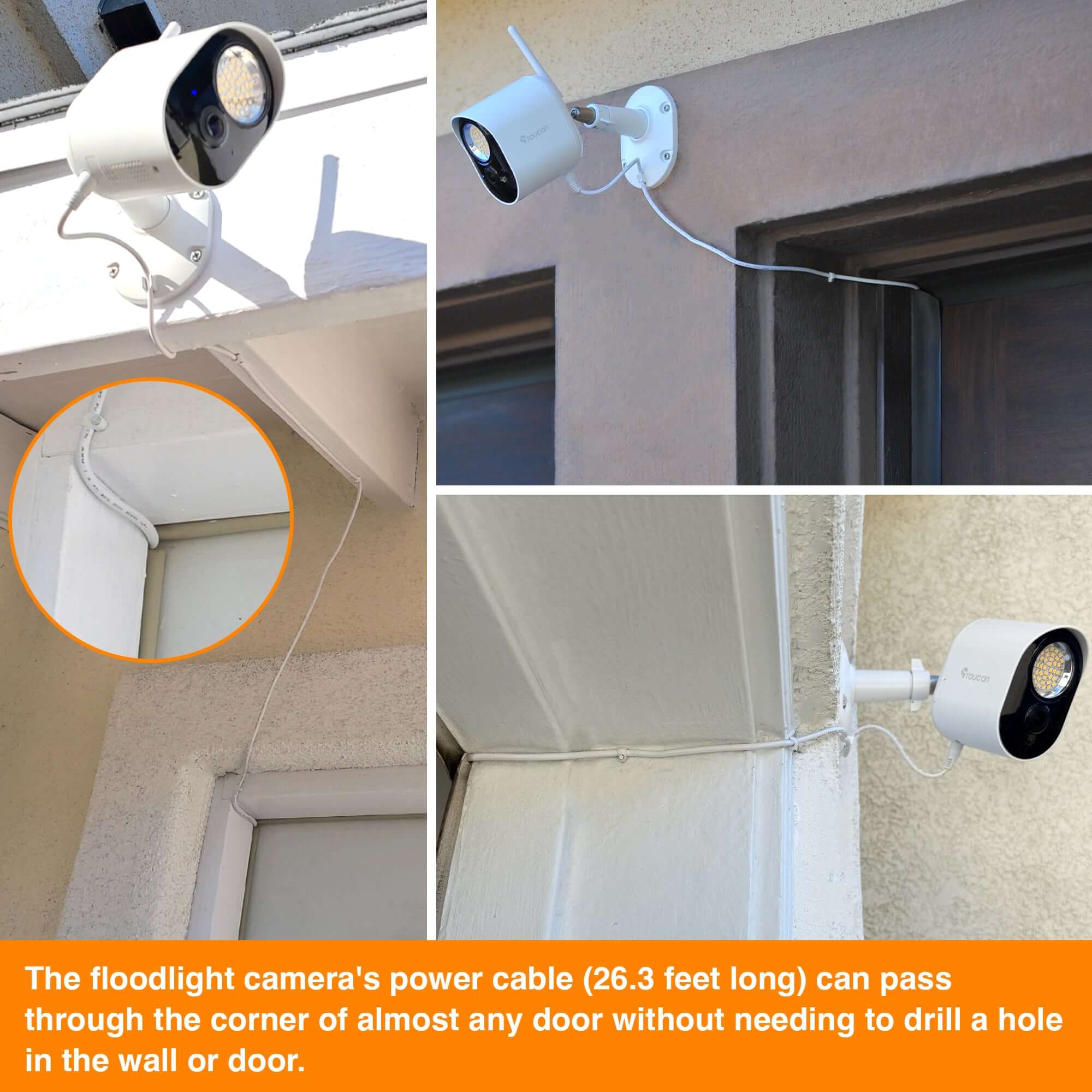
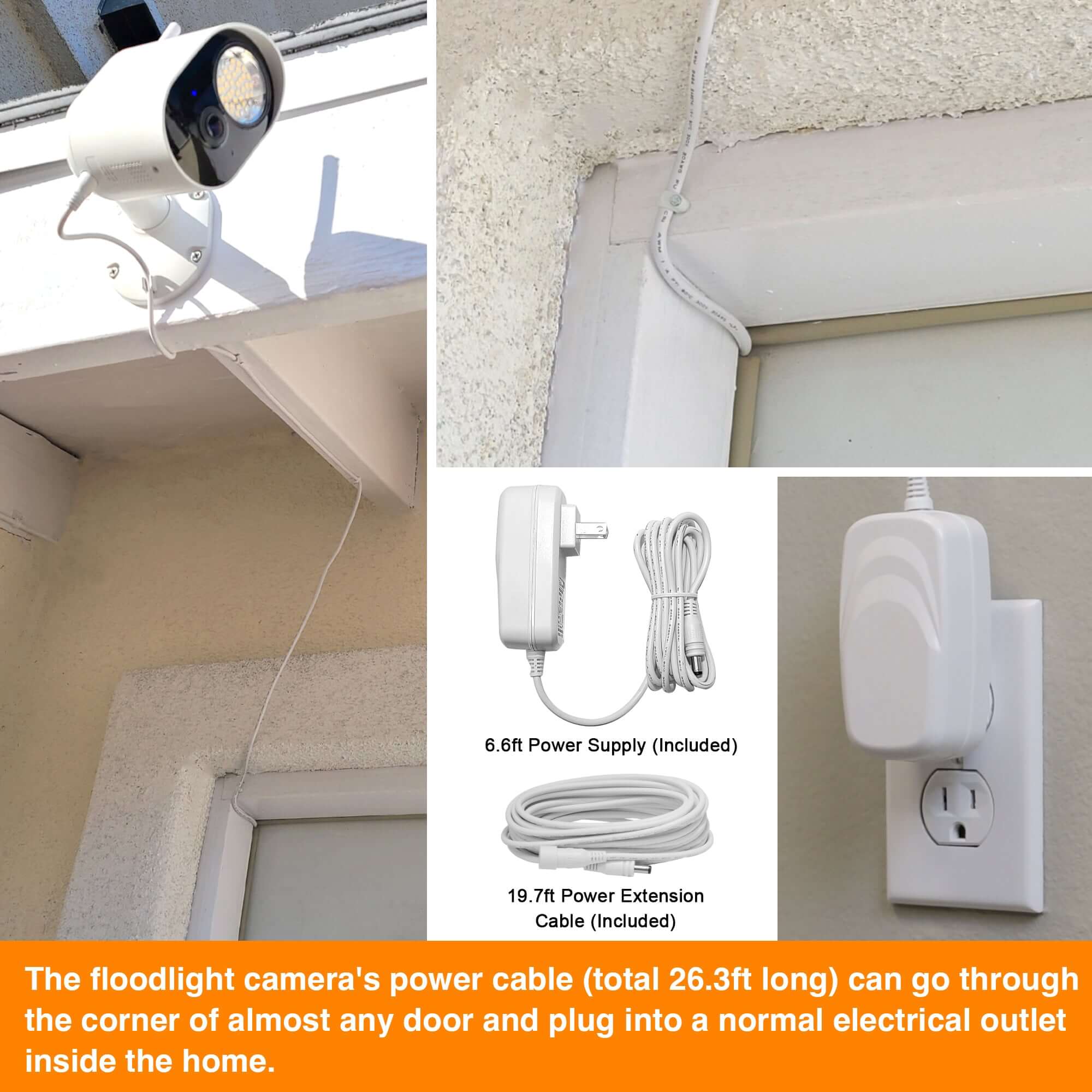
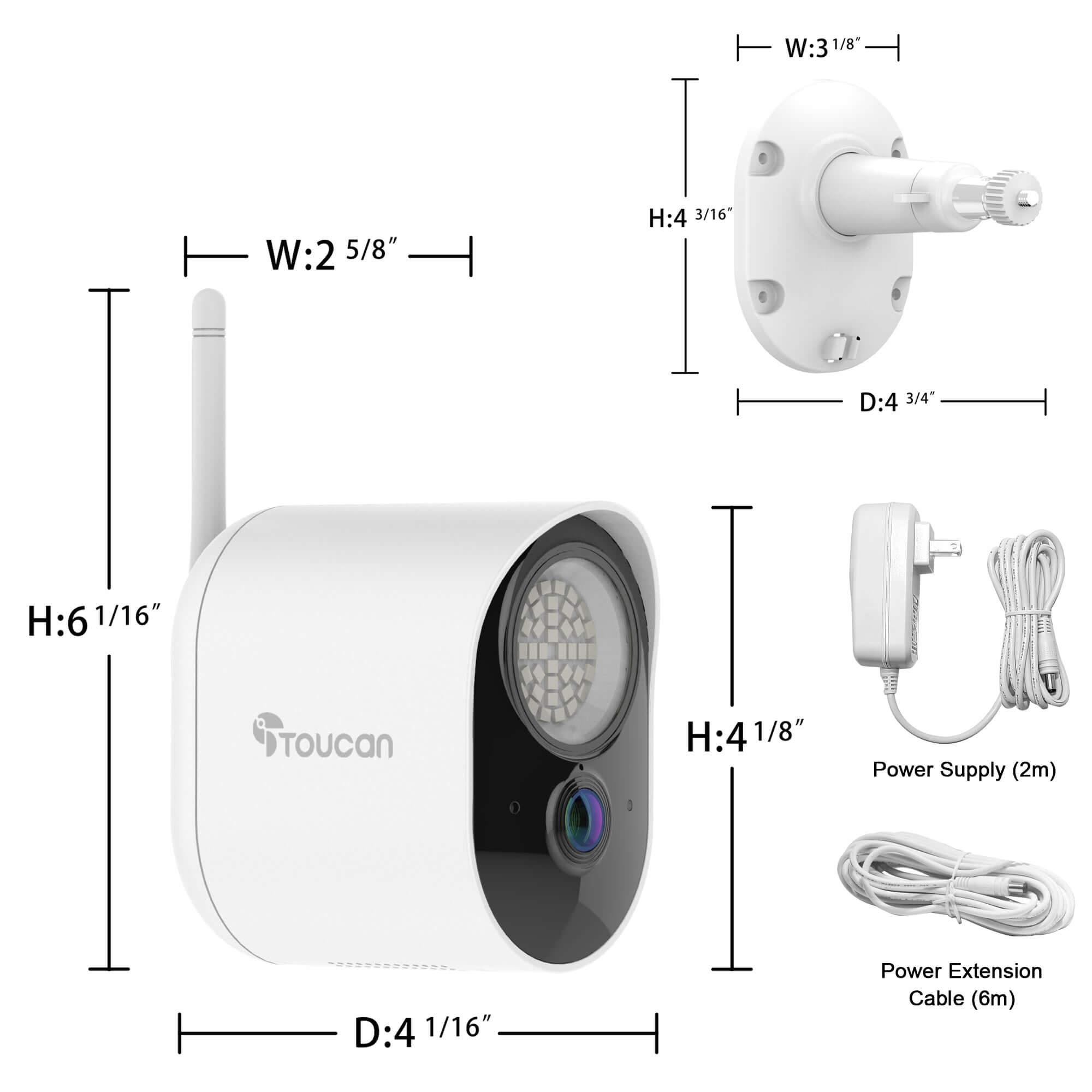
The camera connects to a standard electrical outlet for continuous power and includes an 8-meter weather-resistant power cable. No separate hub is required.
Floodlight security camera features
- 1080p Full HD video
- 146° wide-angle view
- Adjustable 1200-lumen LED security light
- Accurate radar motion detection
- Customizable motion zones
- Night vision
- Two-way talk
- Pre-recorded responses
- Built-in 110 dB siren and flashing light
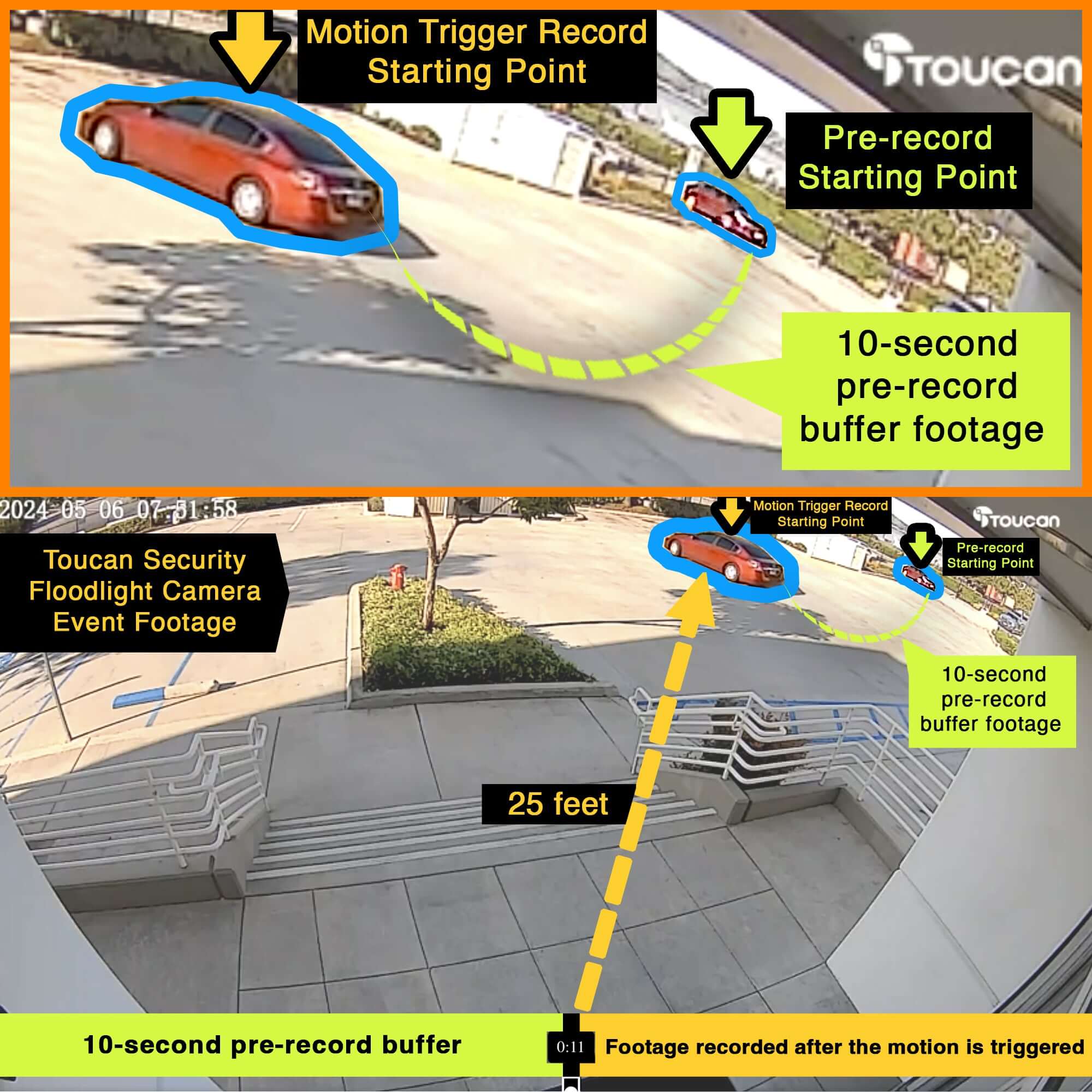
- 10-second pre-recording buffer
- IP56 weather-resistant design
- Encrypted video for added privacy
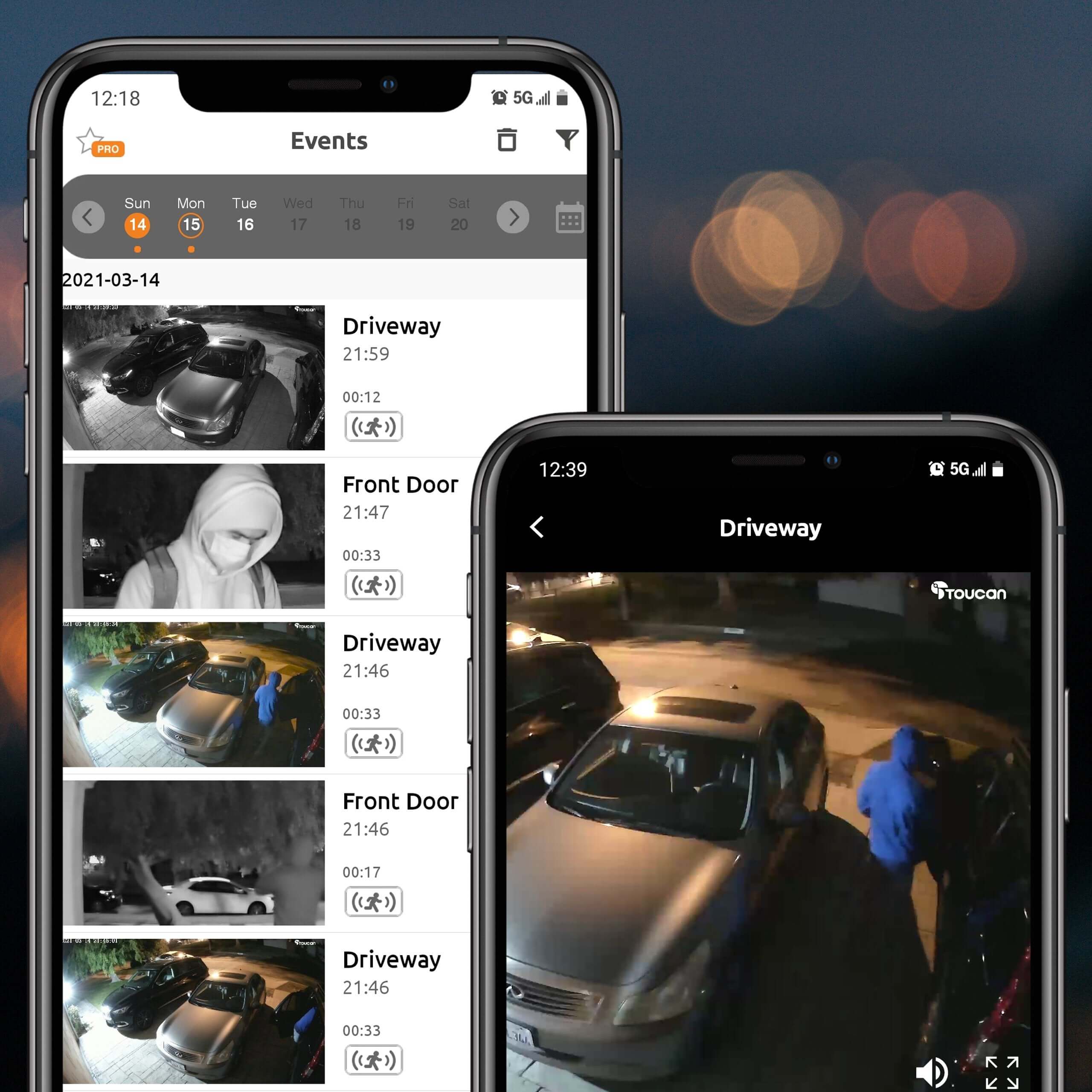
- Included 24-hour video-event history
- No separate hub required
- Continuous outlet power
- Eight-meter weather-resistant power cable
- Compatible with 2.4 GHz Wi-Fi
Choose an outdoor viewpoint
- Driveways and garages
- Backyards and patios
- Side entrances and walkways
- Outdoor areas needing lighting and video monitoring
- Homeowners who prefer continuous outlet power
Included app features and optional plans
A paid subscription is not required for essential camera use and access to the included 24-hour video-event history. Optional Toucan plans provide longer history, additional storage and expanded features.
Compare Toucan floodlight cameras for multipack options, or review Toucan app features before choosing your setup.
Product highlights
Super Bright 1200Lm
Radar Motion Detection
110dB Siren
Night Vision
Video History
Video Encryption
In stock, ready to ship
Pairs well with
In stock! Ships within 1-2 business days.

30-day returns; terms apply
1-Year Warranty
Free standard shipping on $49+ to contiguous U.S.
Floodlight Security Camera – Toucan 1080p HD, 1200-Lumen LED
Sale price$59.00Regular price
$99.99
For product and order support, contact Toucan. Please include your product model or order number.
-
Shipping Information
View our Shipping & Delivery information for delivery areas and charges.
-
Customer Support
Visit Contact Toucan for product and order support.
-
FAQ’s
Find setup and product answers in our Frequently Asked Questions.
-
Contact Us
Visit Contact Toucan for product and order support.

Security FloodLight Camera
Use two-way talk to speak through the camera using the free Toucan Smart Home app, use pre-recorded auto-responses to let someone know that you’re watching, even trigger the 110dB siren and flashing light from the app. With customizable motion zones, let your security light camera only alert you when it detects motion where you want it to look for motion.
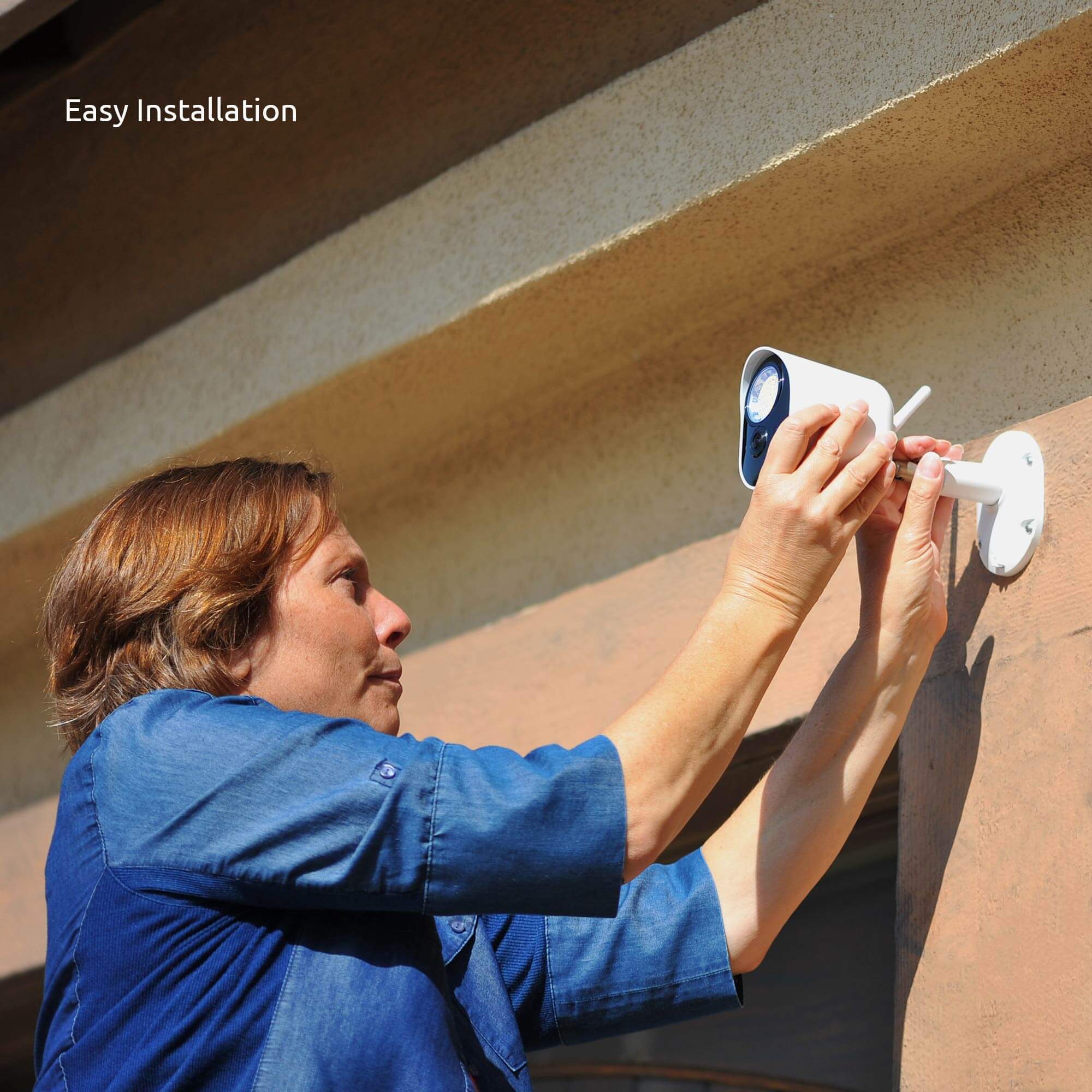
The Toucan Security Light Camera can be easily installed in just a few minutes, and is powered from any electrical outlet for constant power. Just connect to your WiFi, mount it and power it, and you’re ready to go. You can even access the last 24 hours of recorded clips for free, or subscribe for additional cloud storage.


Toucan Smart Home App AI+


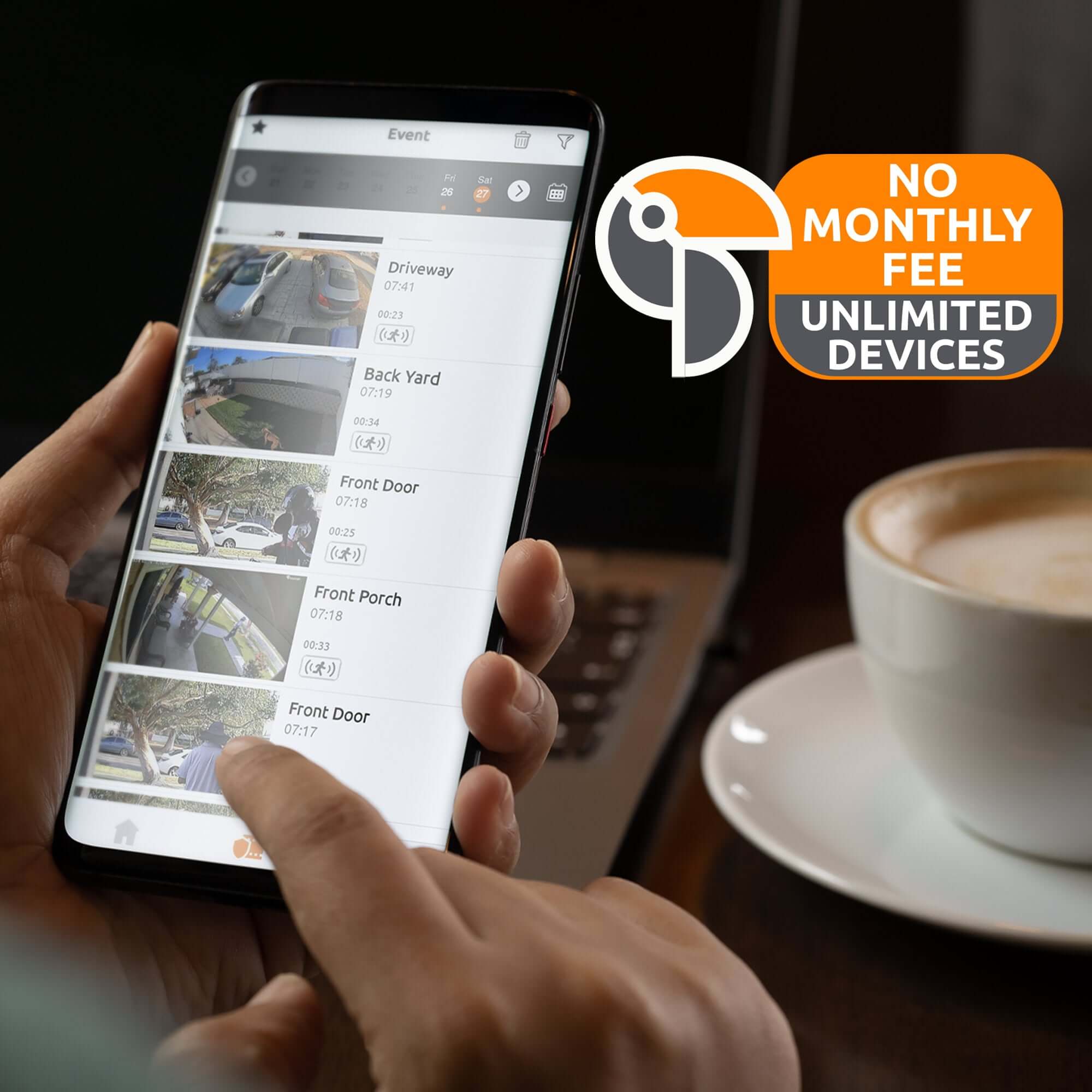
Stay connected and in control with the Toucan Smart Home App for iOS and Android. View live video, receive instant motion alerts, use two-way talk and review recorded events from the previous 24 hours—all from virtually anywhere.
The included Free plan provides essential monitoring and one day of event-video history. Optional Toucan Shield plans offer longer video history and additional AI+ features. Compare current plan features.
Toucan also works with supported Amazon Alexa and Google Home devices, making it easier to stay connected to your home.
Tech Spec
Features
Accurate RADAR Motion Detection sends instant notifications to your smartphone alerting you that motion is detected.
1200 lumens super bright adjustable security light can illuminate the area and help prevent crime.
1080p Full HD resolution with 146˚ wide-angle view allows you to monitor an expansive area with clear video.
IP56 weather resistance rating protects the device from the weather.
Customizable motion detection zones help you filter out real alerts from unwanted traffic.
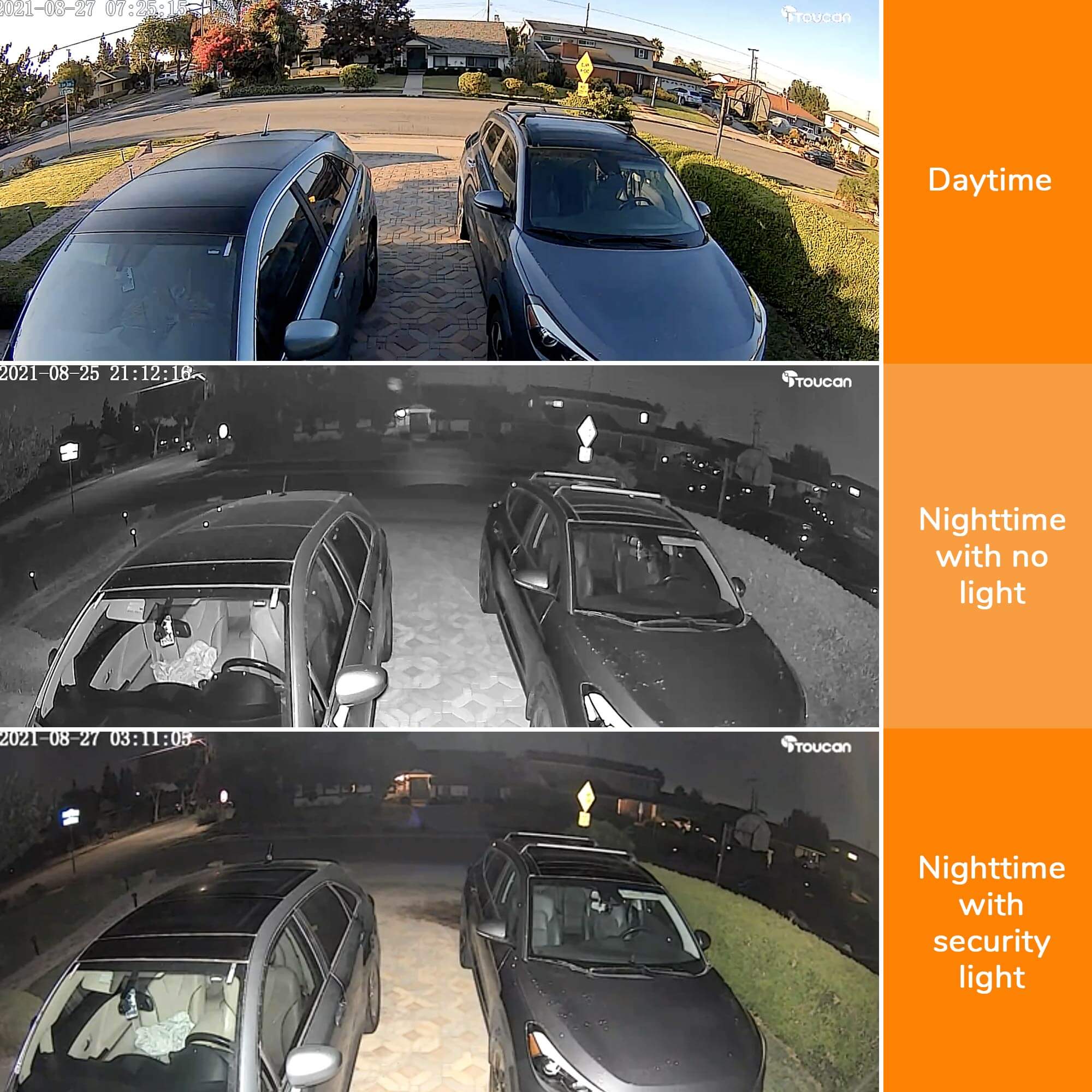
Night vision allows clear recordings and motion detection in low light conditions.
A 10-second pre-record buffer before triggering the footage recording ensures more complete and accurate footage to review when an incident occurs.
Toucan Smart Home App installed on your smartphone allows control and access from anywhere.
110dB speaker and siren to scare the intruder away.
No Subscription Required.
Free 24-hour video history allows you to review the events of the day.
Two-way talk through your smartphone lets you speak to the person remotely.
Pre-recorded messages to obscure your voice.
Works with Amazon Echo Show and Google Home.
No hub or base station required.
2.4Ghz Wi-Fi makes it easy to connect the outdoor camera to your home network (Not Compatible with 5Ghz Wi-Fi).
Powered from any Electrical Outlet.
8m total of included Weather Resistant Power Cable Videos.
Encrypted for Privacy.
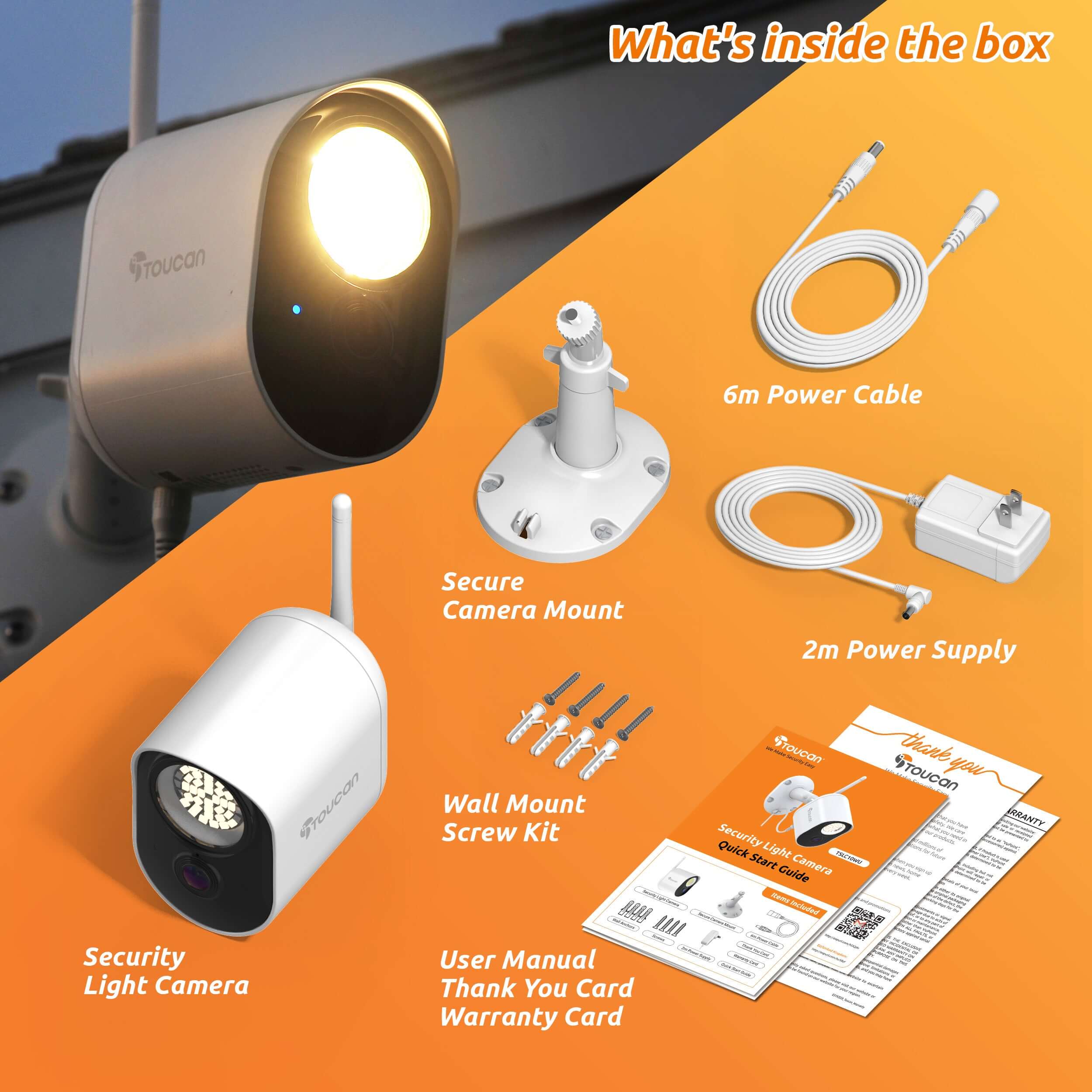
Included in the Box

Camera

Mount

Screws

Cables

Manual


FAQs
Please read our FAQs page to find out more.
How to pair via QR code?
Please check out our video on how to pair our camera that is using QR Code to our Toucan Smart Home App.
Watch the how-to video here: https://youtu.be/Pk1gjAyNHk8
Why can't I connect my camera to Wi-Fi?
Our cameraonly supports 2.4 GHz Wi-Fi networks. Before setting up the camera, make sure yourphone is connected to a 2.4 GHz Wi-Fi. Many routers offer both 2.4 GHz and 5 GHz bands, so it's important to select the correct one.
How do I check if my phone is connected to a 2.4 GHz Wi-Fi?
📱 For iPhone (iOS):
Go to Settings > Wi-Fi.
Tap the connected Wi-Fi network (checkmark).
If the network name includes "5G" or "5GHz", it's likely a 5 GHz network.
Switch to a 2.4 GHz network (often labeled without "5G", like "MyWiFi" instead of "MyWiFi_5G").
📱 For Android:
Go to Settings > Connections > Wi-Fi.
Tap the connected network.
Look for the Frequency or Network details.
If it says 5 GHz, disconnect and select a 2.4 GHz option.
💡 Tip: Some routers merge both bands under one name. In this case, temporarily disable 5 GHz in your router settings or move farther from the router—phones often auto-connect to 2.4 GHz at longer range.
How do I pair the camera after connecting to a 2.4 GHz network?
1. Download the camera app from the App Store or Google Play.
2. Open the app and register or log in.
3. Follow the on-screen instructions to add a new device.
4. Make sure your phone remains on the 2.4 GHz Wi-Fi during setup.
5. Enter the Wi-Fi password when prompted.
6. Proceed with pairing—your camera will now connect to the network.
I am looking for a security camera made in the USA. Where are your products made?
We are a US Corporation based in So. Calif. Our security cameras are manufactured in Vietnam. However all other aspects are here in the USA, including our cloud servers and customer service.
Didn't find your answer?
Click the link below, and one of our agents will be happy to assist you!