
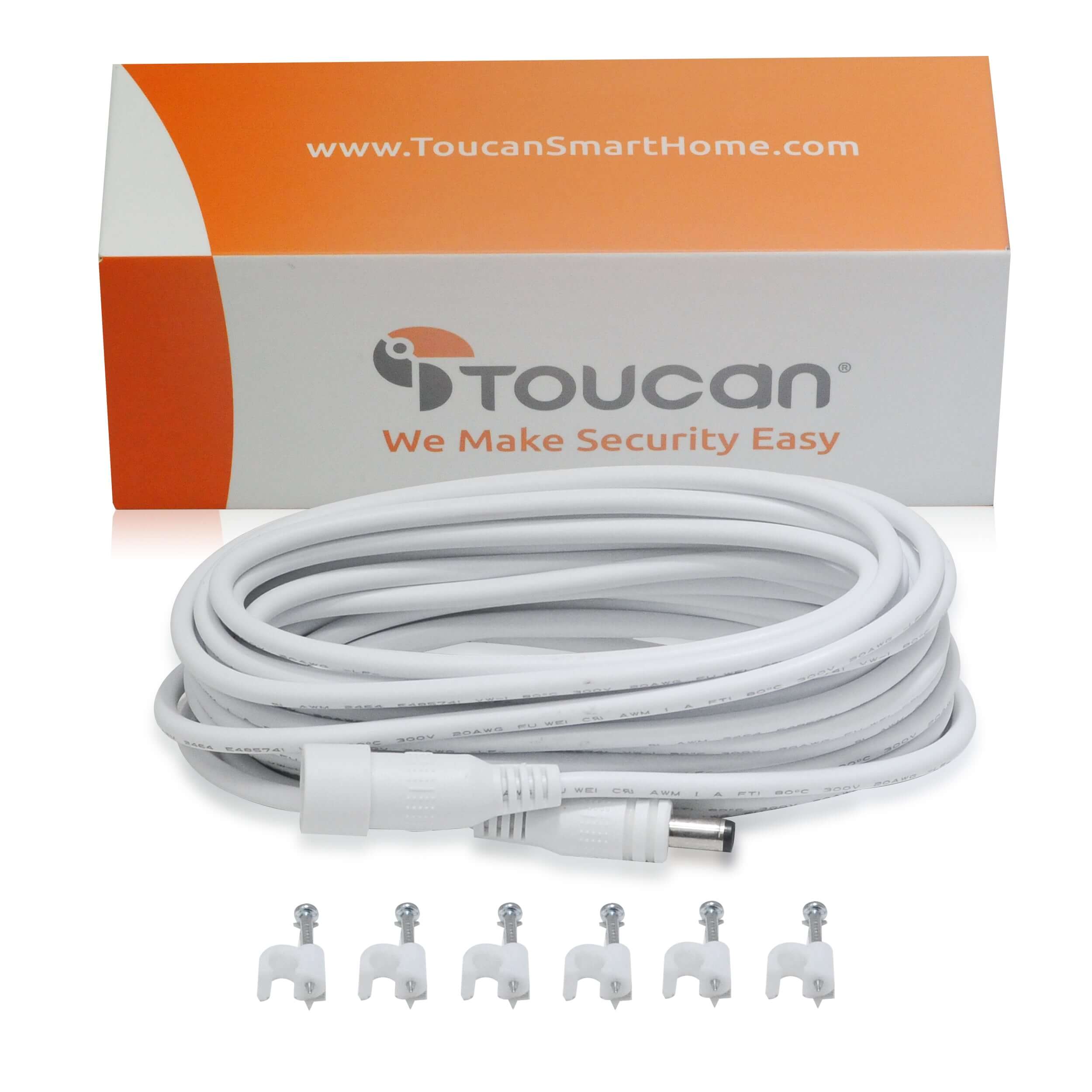
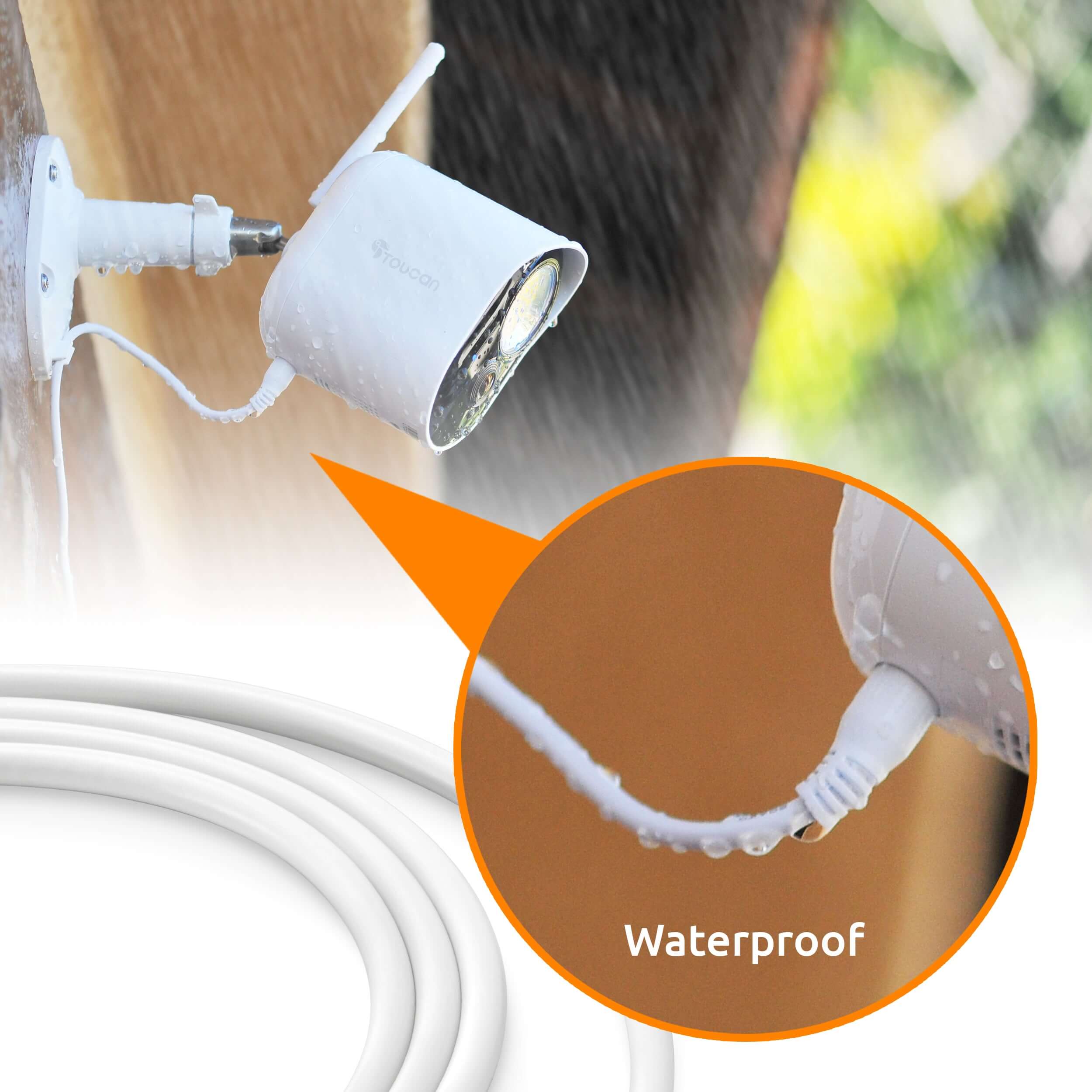
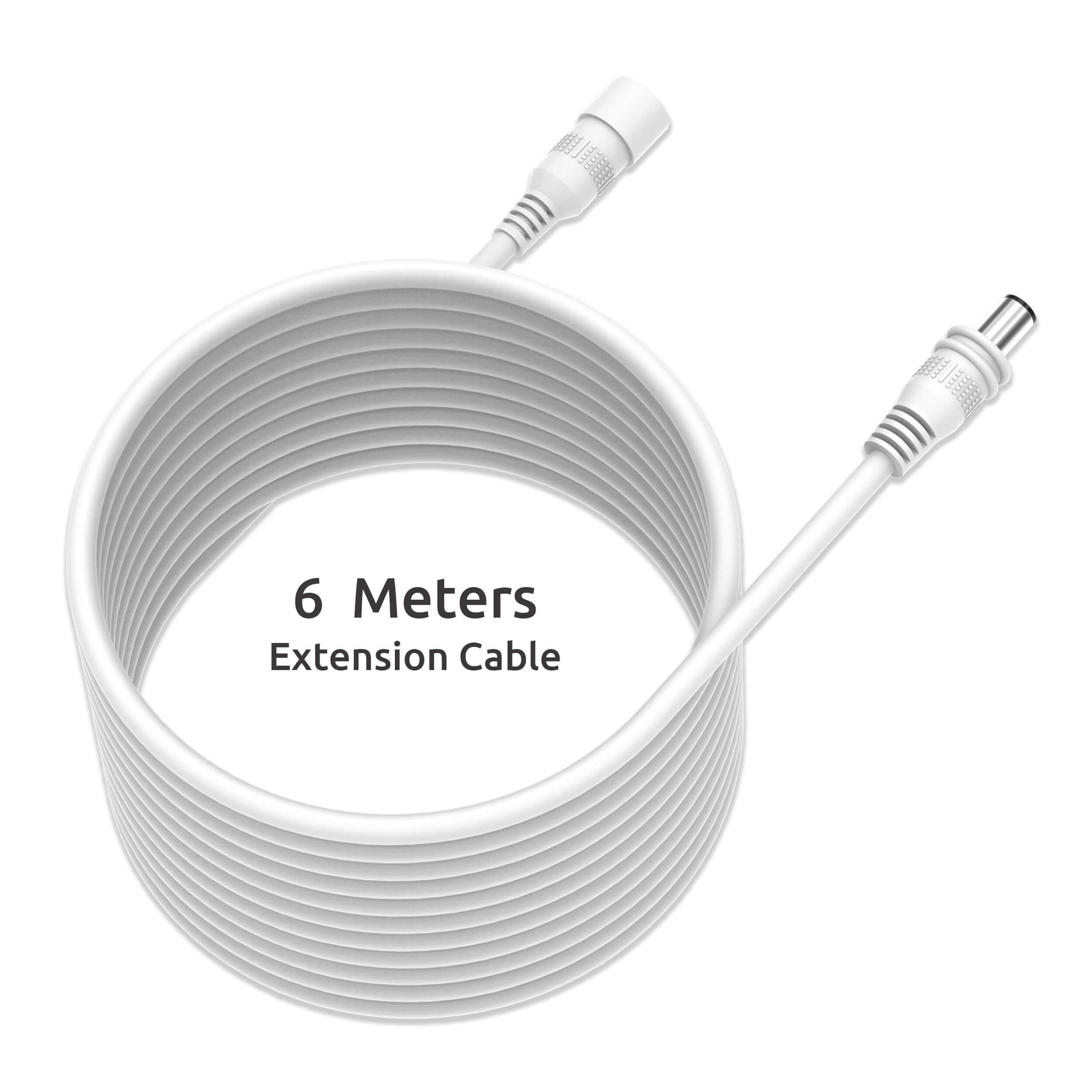
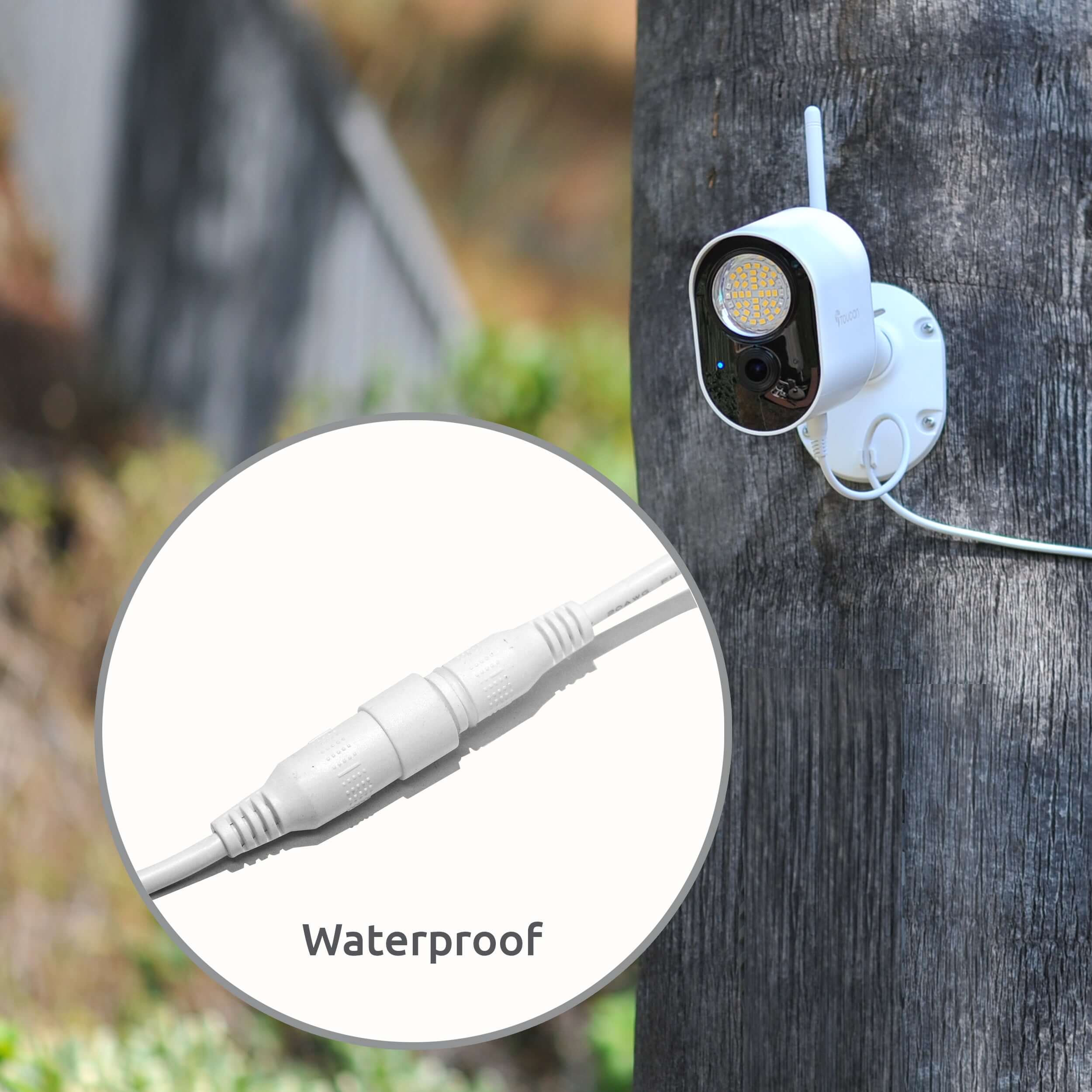
Product highlights


Toucan Security Light Camera Extension Cable
SKU: TSLCEX1WU-1
Toucan Security Light Camera Extension Cable
Product highlights
Pairs well with
In stock! Ships within 1-2 business days.

30-day risk-free trial
1-Year Warranty
Free shipping over $75
Toucan Security Light Camera Extension Cable
If you have any questions, you are always welcome to contact us. We'll get back to you as soon as possible, within 24 hours on weekdays.
-
Shipping Information
Use this text to answer questions in as much detail as possible for your customers.
-
Customer Support
Use this text to answer questions in as much detail as possible for your customers.
-
FAQ’s
Use this text to answer questions in as much detail as possible for your customers.
-
Contact Us
Use this text to answer questions in as much detail as possible for your customers.
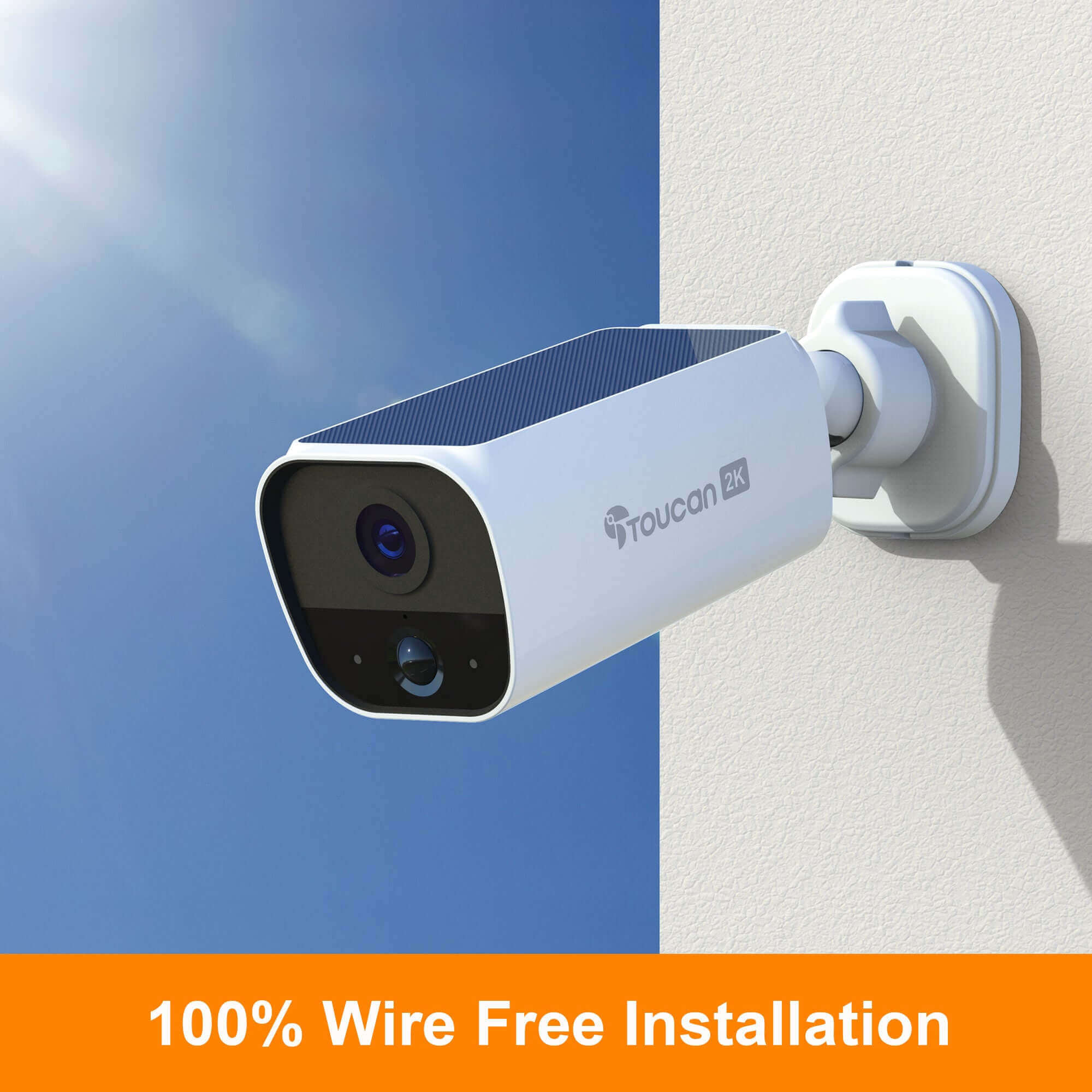
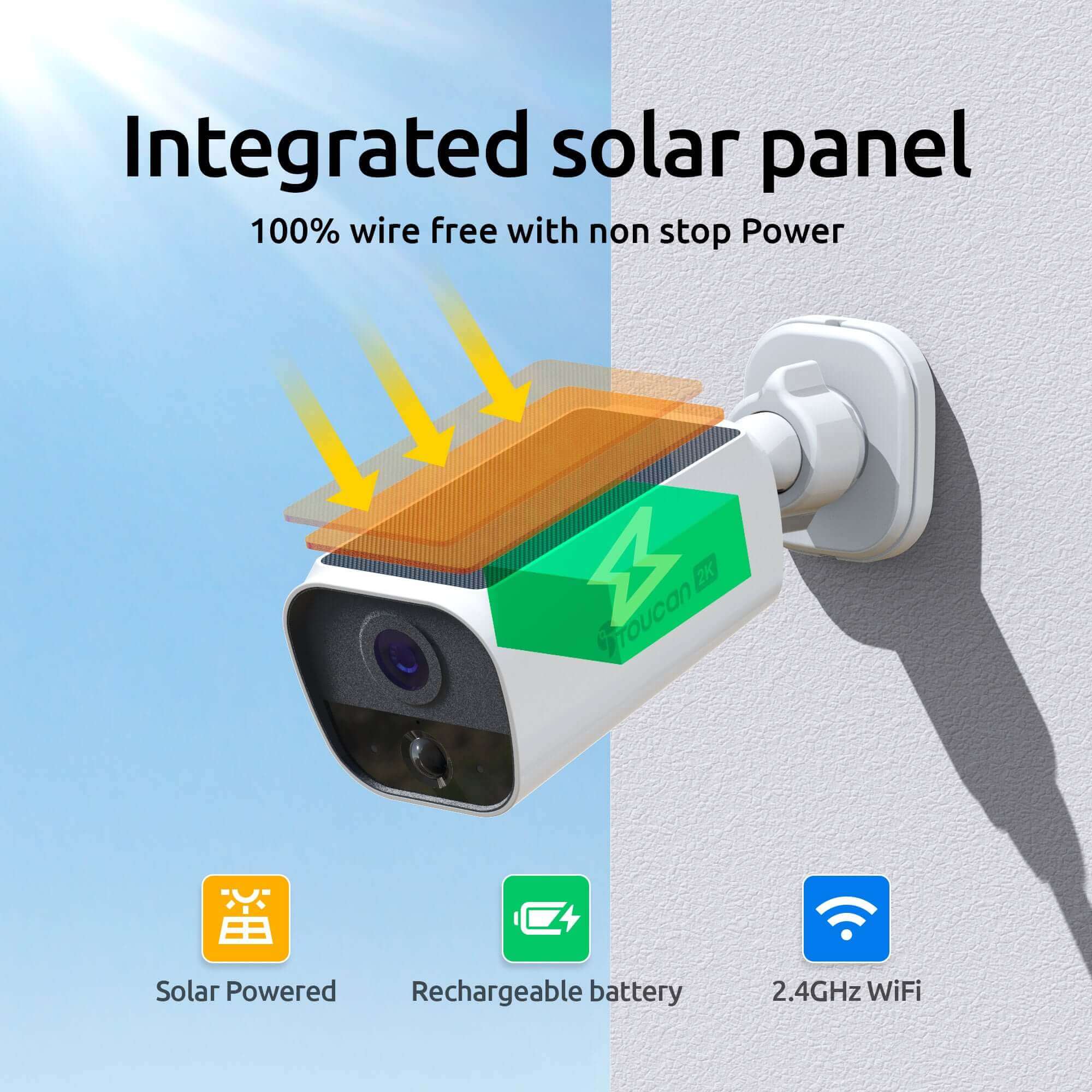
Solar Wireless Security Camera
Powered by Toucan's latest low-power PIR motion detection system, the S5 delivers accurate alerts while conserving energy. And with sharp 2K video resolution, you'll always have a clear view of what's happening day or night.
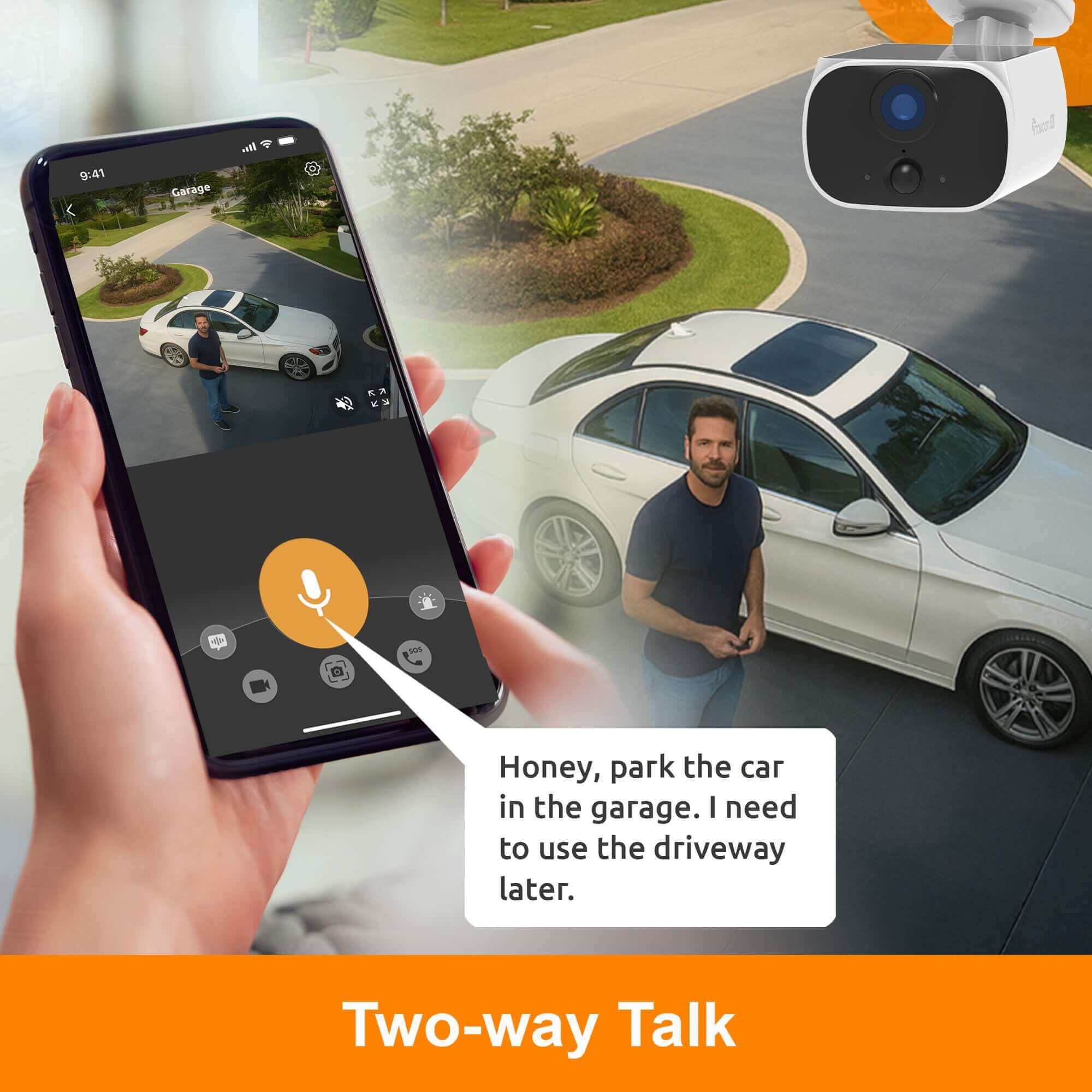
Through the Toucan Smart Home app, you can monitor and control your S5 camera from anywhere. View live video, use two-way talk, trigger the built-in siren, set pre-recorded auto-responses, and review recorded video clips. Customizable motion zones ensure you receive alerts only where it matters most.
The Toucan S5 Solar Wireless Security Camera is easy to install in just minutes. Simply connect it to your smartphone, mount it, and you're ready to go. Enjoy free access to the last 24 hours of recorded video or upgrade to a subscription for enhanced features and cloud storage.

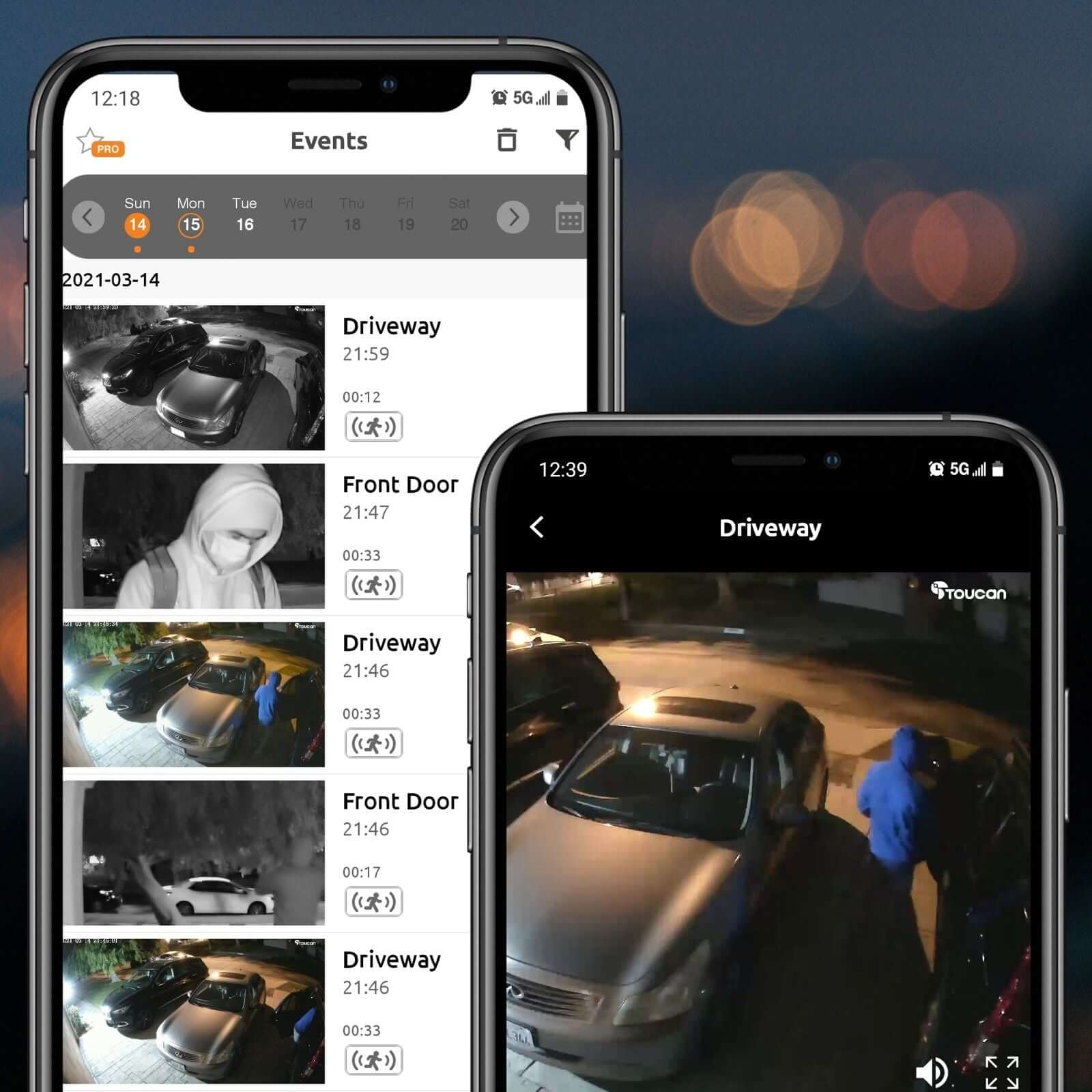
Toucan Smart Home Applications
Stay connected and in control with our Toucan Smart Home App, designed to work seamlessly with iOS and Android devices for real-time monitoring anytime, anywhere. Enjoy crystal-clear live streaming, instant motion alerts, and secure cloud storage, all easily integrated with Alexa and Google Home for hands-free voice control. Whether you're at home or away, our intuitive app keeps your property safe with smart automation and reliable 24/7 protection.

Toucan Shield Plans
Get your home protected 24/7 with the Toucan Shield Plan. Toucan's subscription plans are designed to help you get the coverage you need with the price you want to pay. Receive more from your Toucan devices by seeing more video recordings, sharing your cameras to other phones and save every video captured by Toucan products. Choose a Toucan Shield Plan that fits you!
Tech Spec
Features
Use this text to share information about your brand with your customers. Describe a product, share announcements, or welcome customers to your store.
Battery
Use this text to share information about your brand with your customers. Describe a product, share announcements, or welcome customers to your store.
Connectivity
Use this text to share information about your brand with your customers. Describe a product, share announcements, or welcome customers to your store.
Included in the Box

1 S5 Solar Wireless Security Camera

Wall Mount

USB Charging Cable

Screws and Anchors

User Manual


Testimonials
Where experience meets satisfaction
FAQs
Please read our FAQs page to find out more.
How to pair via QR code?
Please check out our video on how to pair our camera that is using QR Code to our Toucan Smart Home App.
Watch the how-to video here: https://youtu.be/Pk1gjAyNHk8
Why can't I connect my camera to Wi-Fi?
Our cameraonly supports 2.4 GHz Wi-Fi networks. Before setting up the camera, make sure yourphone is connected to a 2.4 GHz Wi-Fi. Many routers offer both 2.4 GHz and 5 GHz bands, so it's important to select the correct one.
How do I check if my phone is connected to a 2.4 GHz Wi-Fi?
📱 For iPhone (iOS):
Go to Settings > Wi-Fi.
Tap the connected Wi-Fi network (checkmark).
If the network name includes "5G" or "5GHz", it's likely a 5 GHz network.
Switch to a 2.4 GHz network (often labeled without "5G", like "MyWiFi" instead of "MyWiFi_5G").
📱 For Android:
Go to Settings > Connections > Wi-Fi.
Tap the connected network.
Look for the Frequency or Network details.
If it says 5 GHz, disconnect and select a 2.4 GHz option.
💡 Tip: Some routers merge both bands under one name. In this case, temporarily disable 5 GHz in your router settings or move farther from the router—phones often auto-connect to 2.4 GHz at longer range.
How do I pair the camera after connecting to a 2.4 GHz network?
1. Download the camera app from the App Store or Google Play.
2. Open the app and register or log in.
3. Follow the on-screen instructions to add a new device.
4. Make sure your phone remains on the 2.4 GHz Wi-Fi during setup.
5. Enter the Wi-Fi password when prompted.
6. Proceed with pairing—your camera will now connect to the network.
I am looking for a security camera made in the USA. Where are your products made?
We are a US Corporation based in So. Calif. Our security cameras are manufactured in Vietnam. However all other aspects are here in the USA, including our cloud servers and customer service.
Didn't find your answer?
Click the link below, and one of our agents will be happy to assist you!