


Product highlights


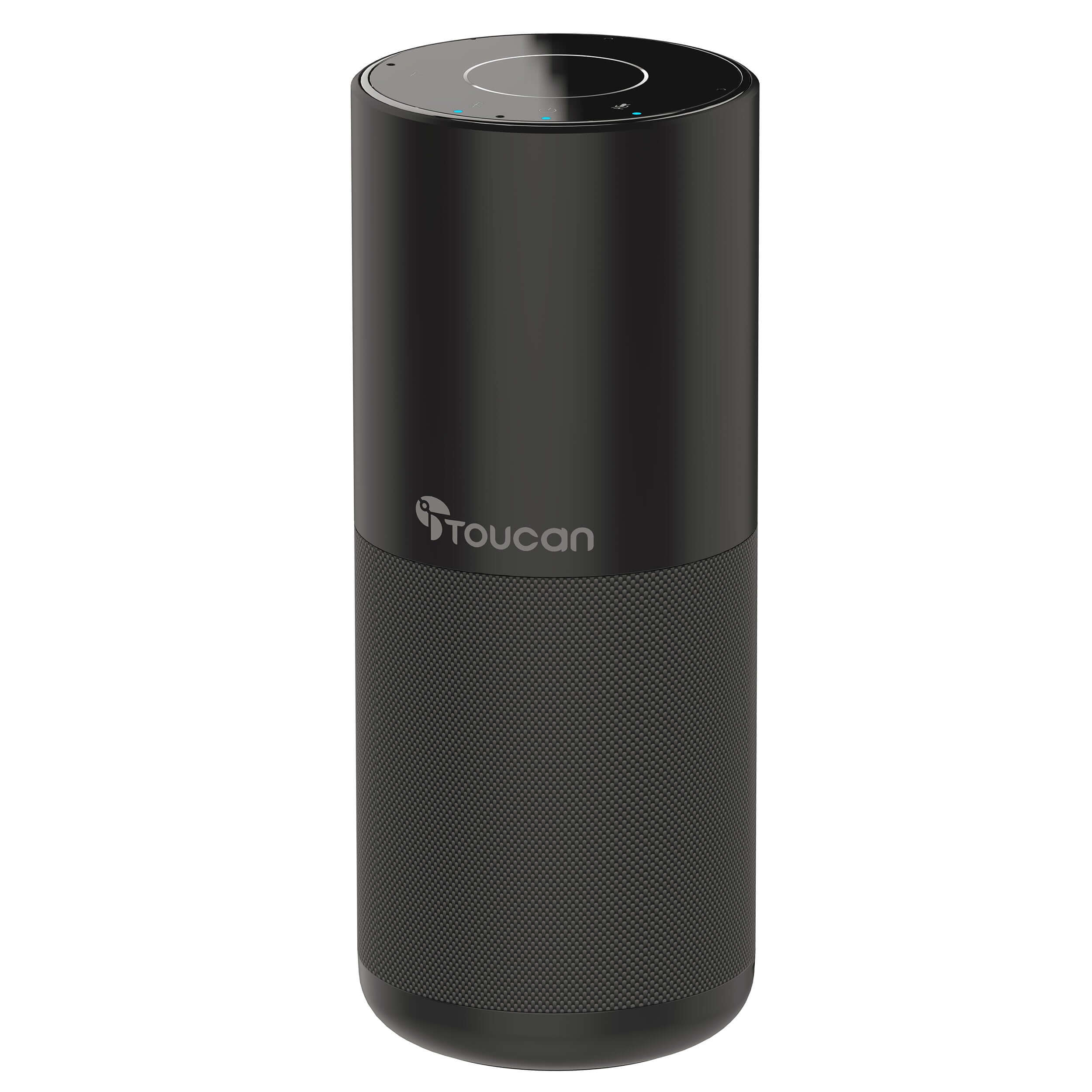
Toucan S100 Conference Speaker – Bluetooth Speakerphone with Microphones, Plug & Play
SKU: TCS100KU-EF
You Need Clear Audio for Better Meetings!
Hear every word and be heard clearly. The S100 conference speaker enhances your calls with better sound quality and simple setup, no complicated equipment needed.
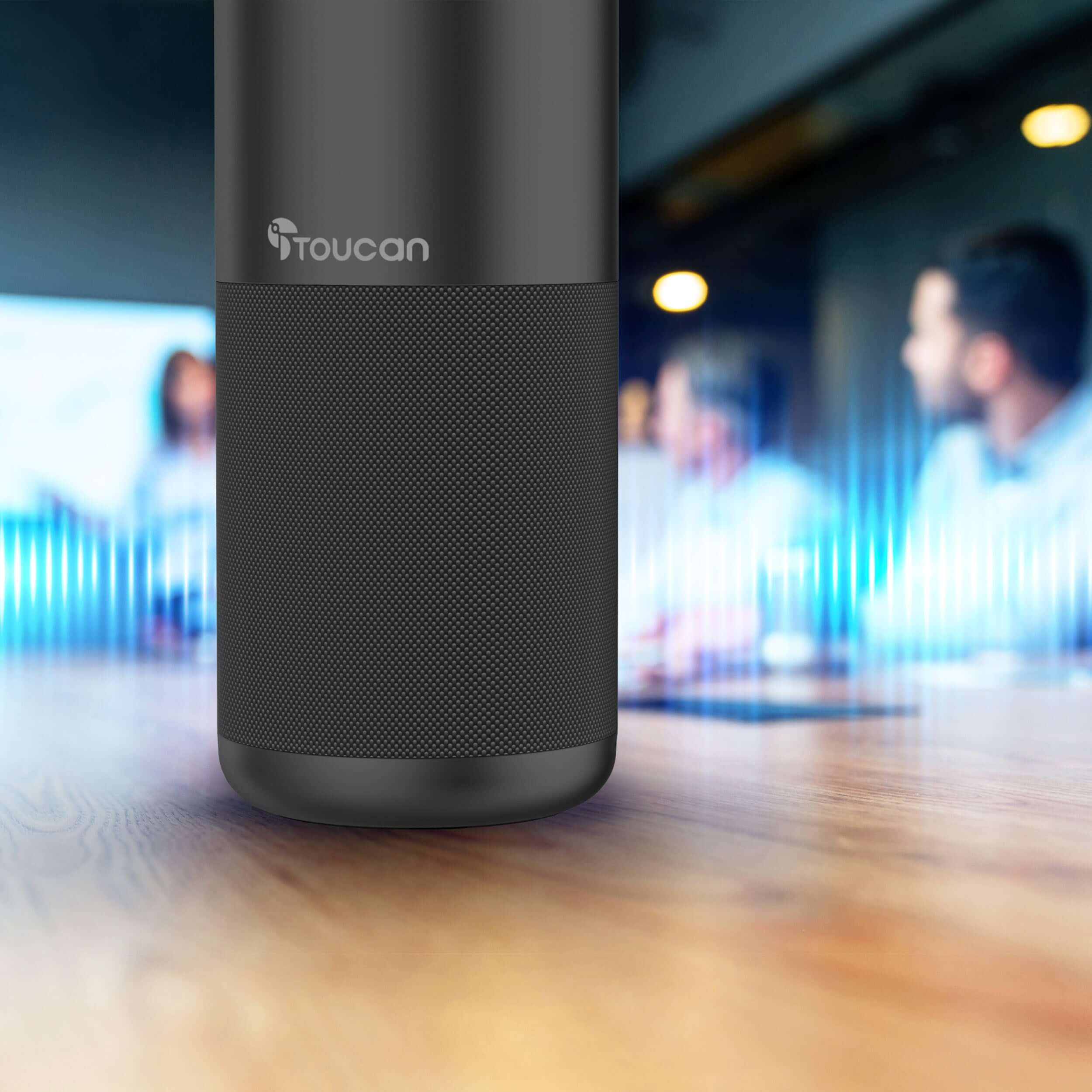
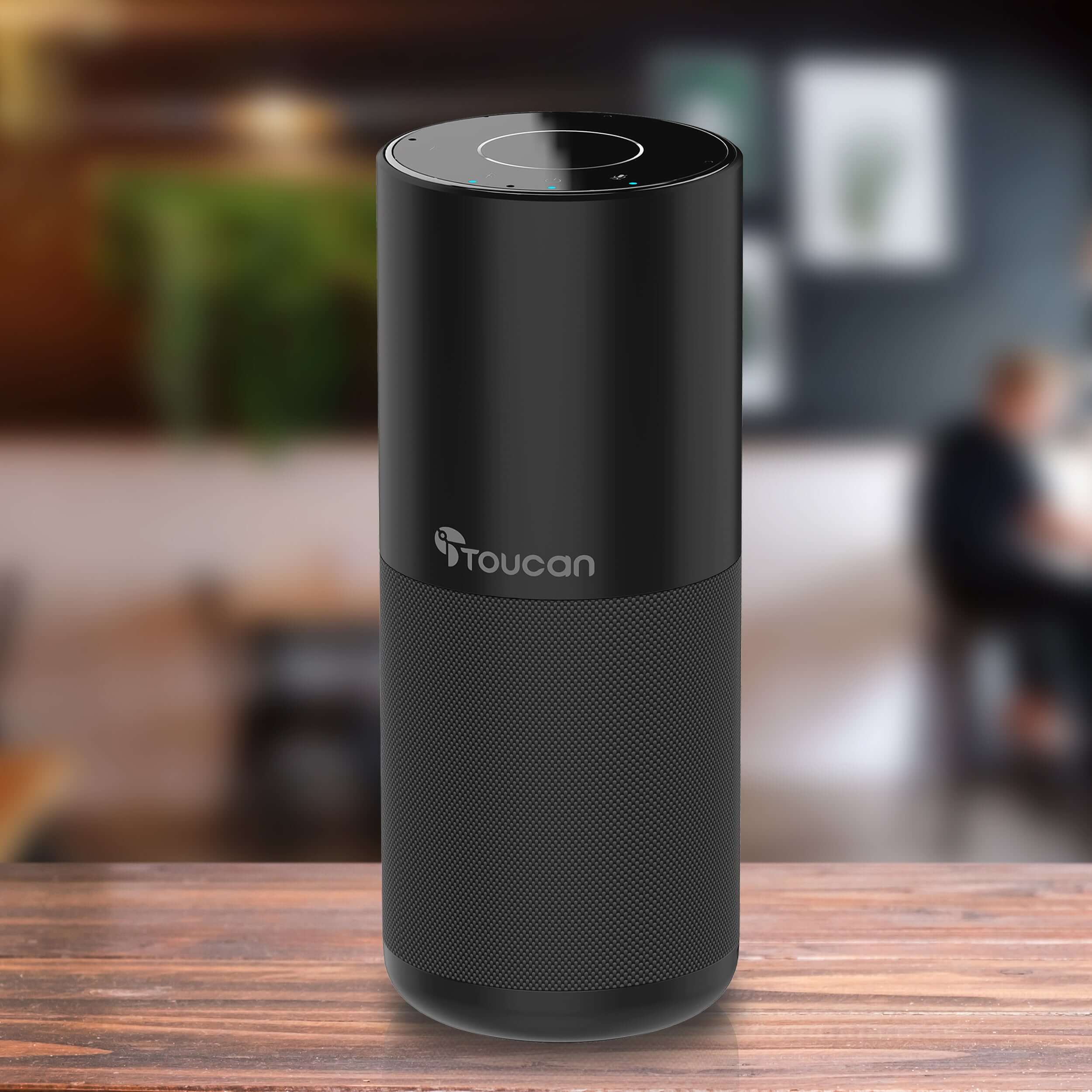
Improve your meetings with the Toucan S100 Conference Speaker. Designed with built-in microphones and a powerful speaker, it delivers clear, balanced audio for calls and virtual meetings. With plug-and-play setup and Bluetooth connectivity, it’s easy to use anywhere.
Ideal For:
- Home office setups
- Small group meetings
- Improving laptop audio quality
Product highlights
Pairs well with
In stock! Ships within 1-2 business days.

30-day risk-free trial
1-Year Warranty
Free shipping over $75
Toucan S100 Conference Speaker – Bluetooth Speakerphone with Microphones, Plug & Play
If you have any questions, you are always welcome to contact us. We'll get back to you as soon as possible, within 24 hours on weekdays.
-
Shipping Information
Use this text to answer questions in as much detail as possible for your customers.
-
Customer Support
Use this text to answer questions in as much detail as possible for your customers.
-
FAQ’s
Use this text to answer questions in as much detail as possible for your customers.
-
Contact Us
Use this text to answer questions in as much detail as possible for your customers.

Conference Speaker
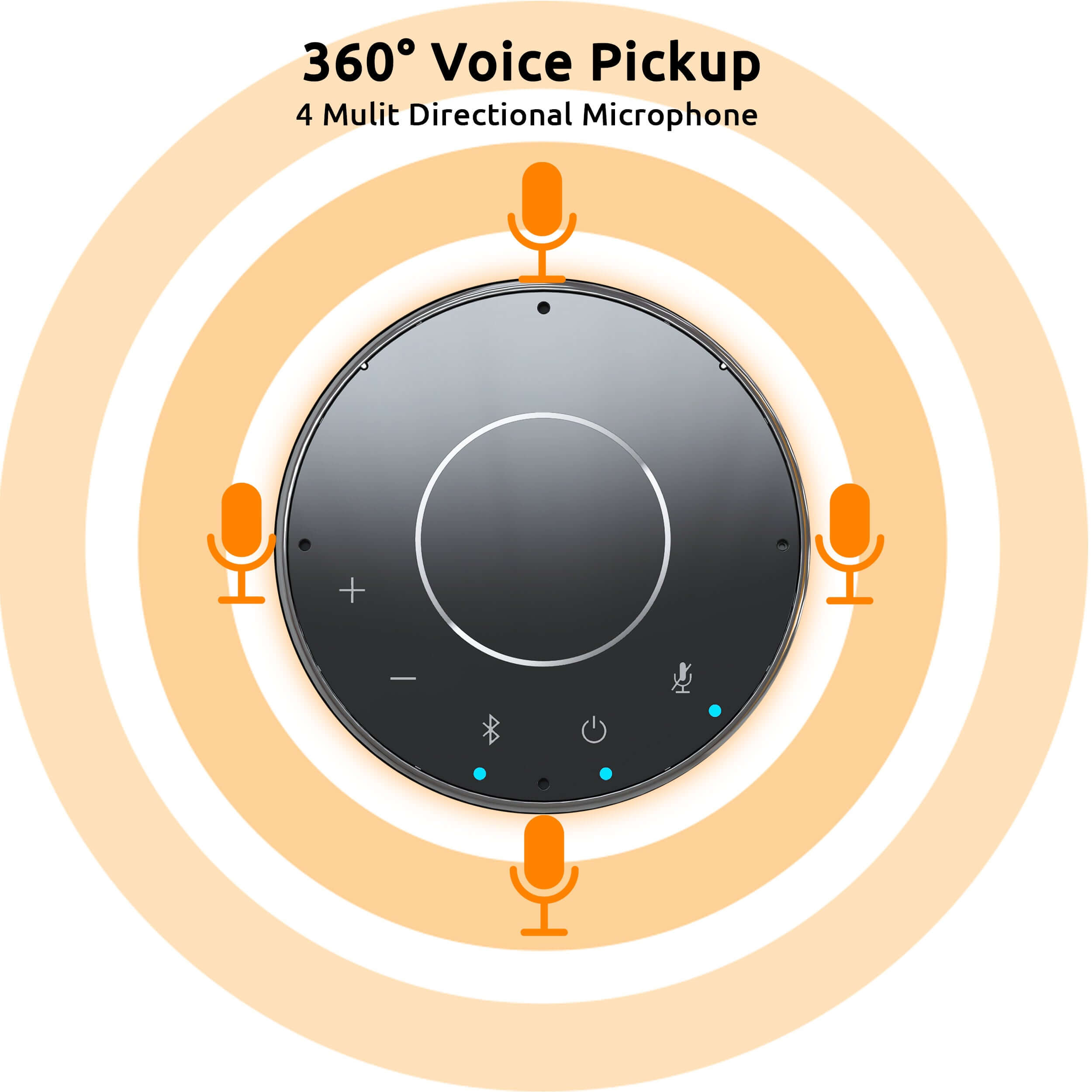
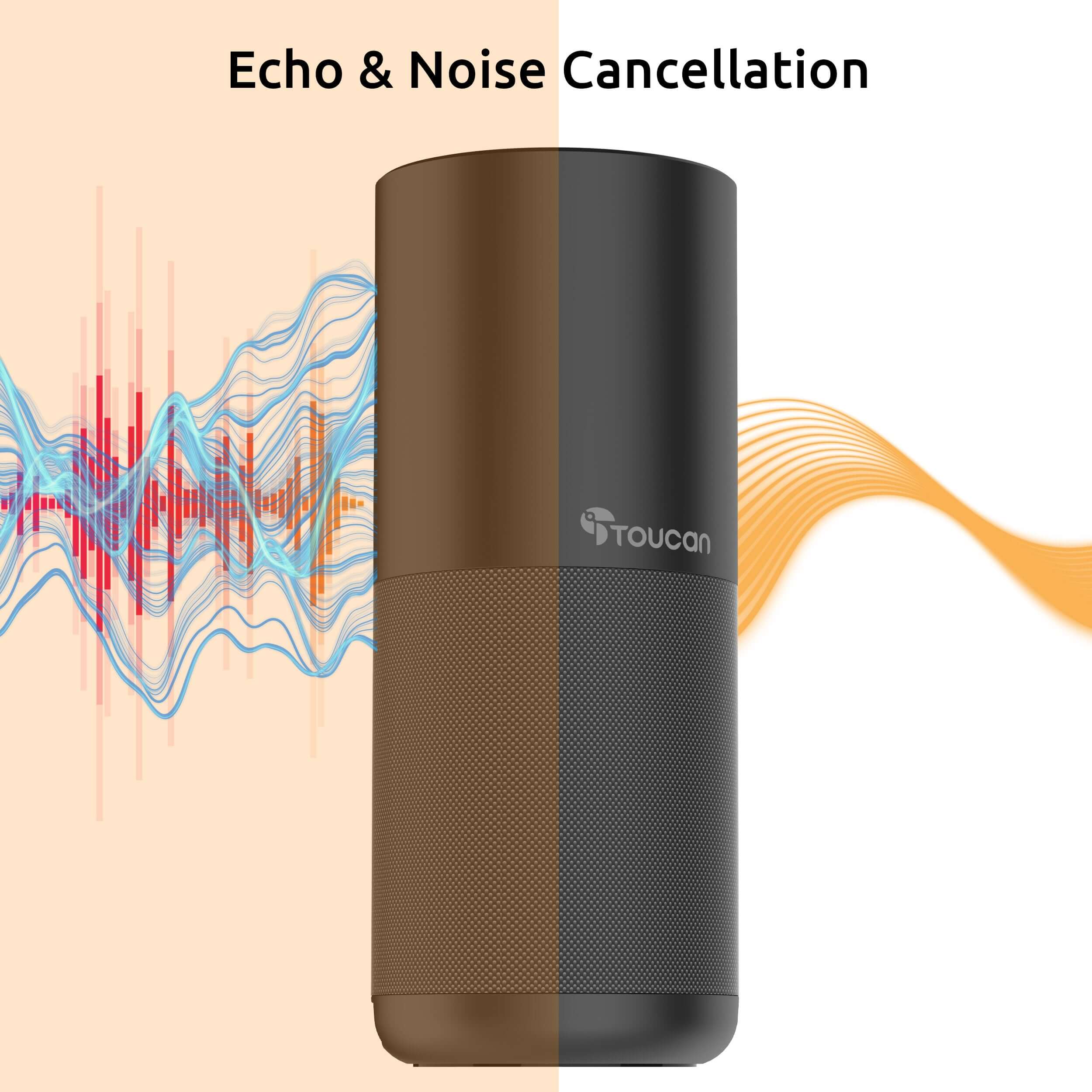
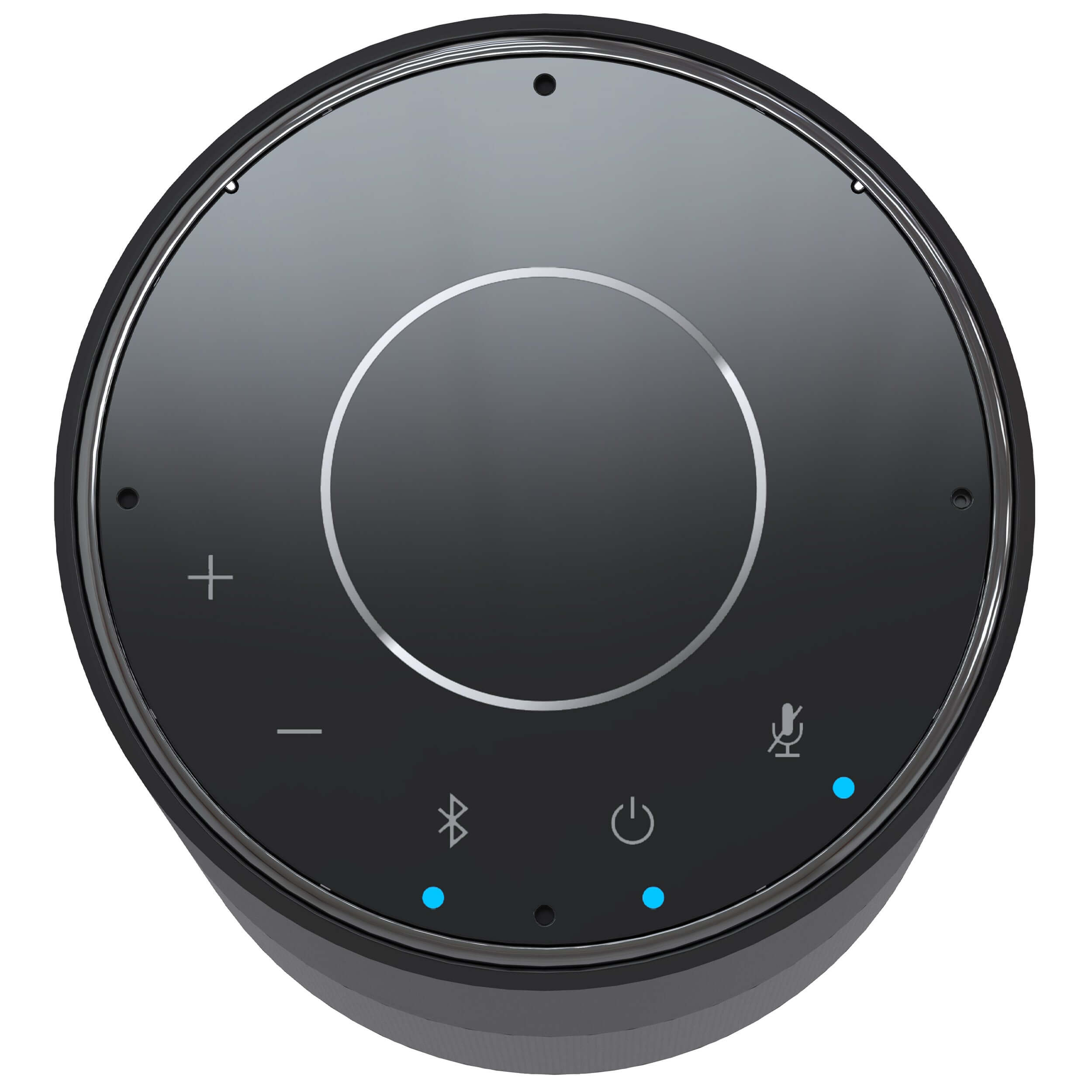
With 4 built-in microphones with real-time echo cancellation, a 5 watt speaker, and a simple plug-and-play interface, this conference speaker is what you need to get your remote conferences up and running quickly and effectively.


Tech Spec
Features
PROFESSIONAL CONFERENCE CALL QUALITY:
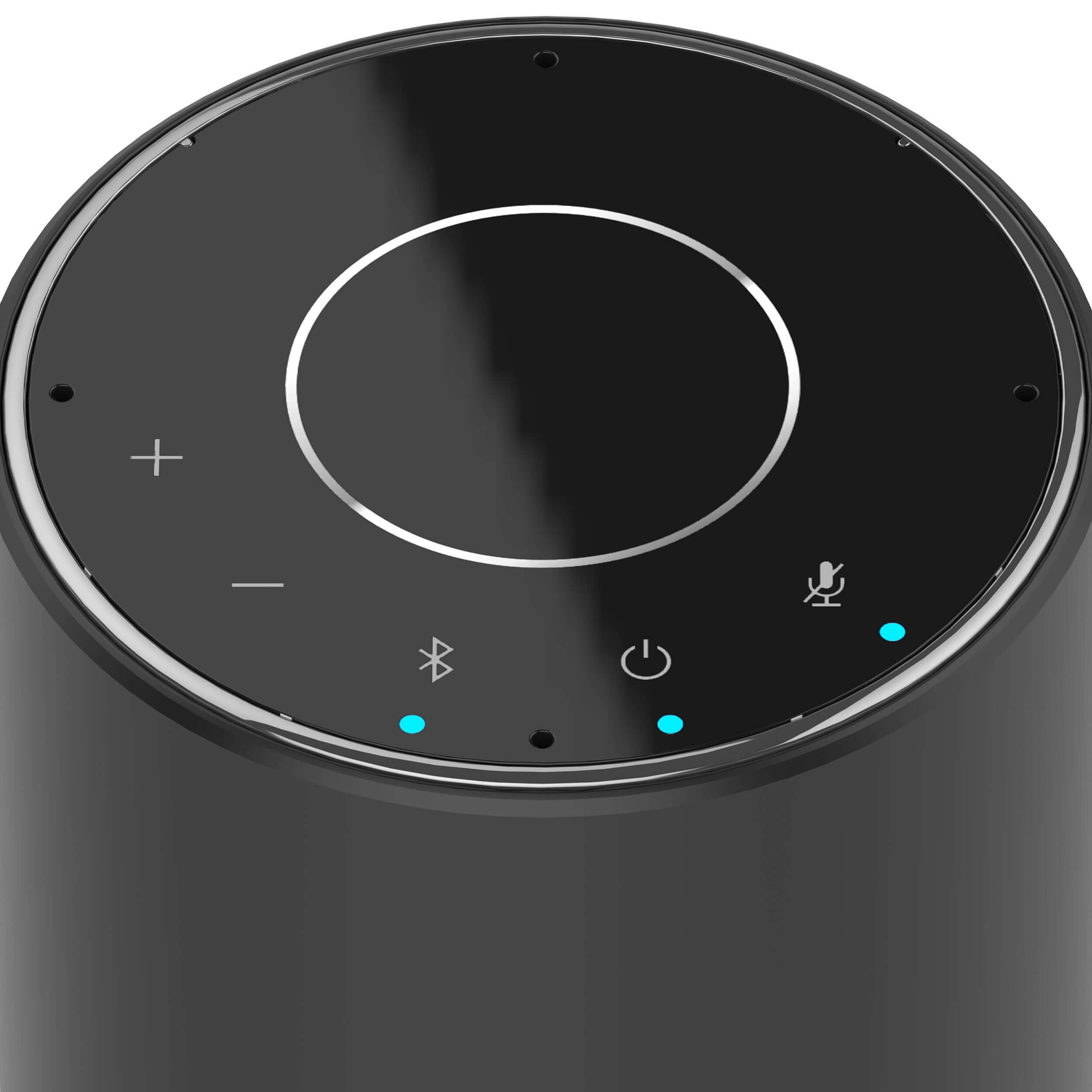
Comes with 4 built-in echo cancelling microphones, to pick up anyone speaking from any angle, which ensures that everyone in the room can be heard.
CLEAR SOUND:
The Toucan Connect Conference Speakerphone has a 5W speaker that is not only excellent for quality sound in a call, but makes it excellent for music as well.
WIRED OR WIRELESS:
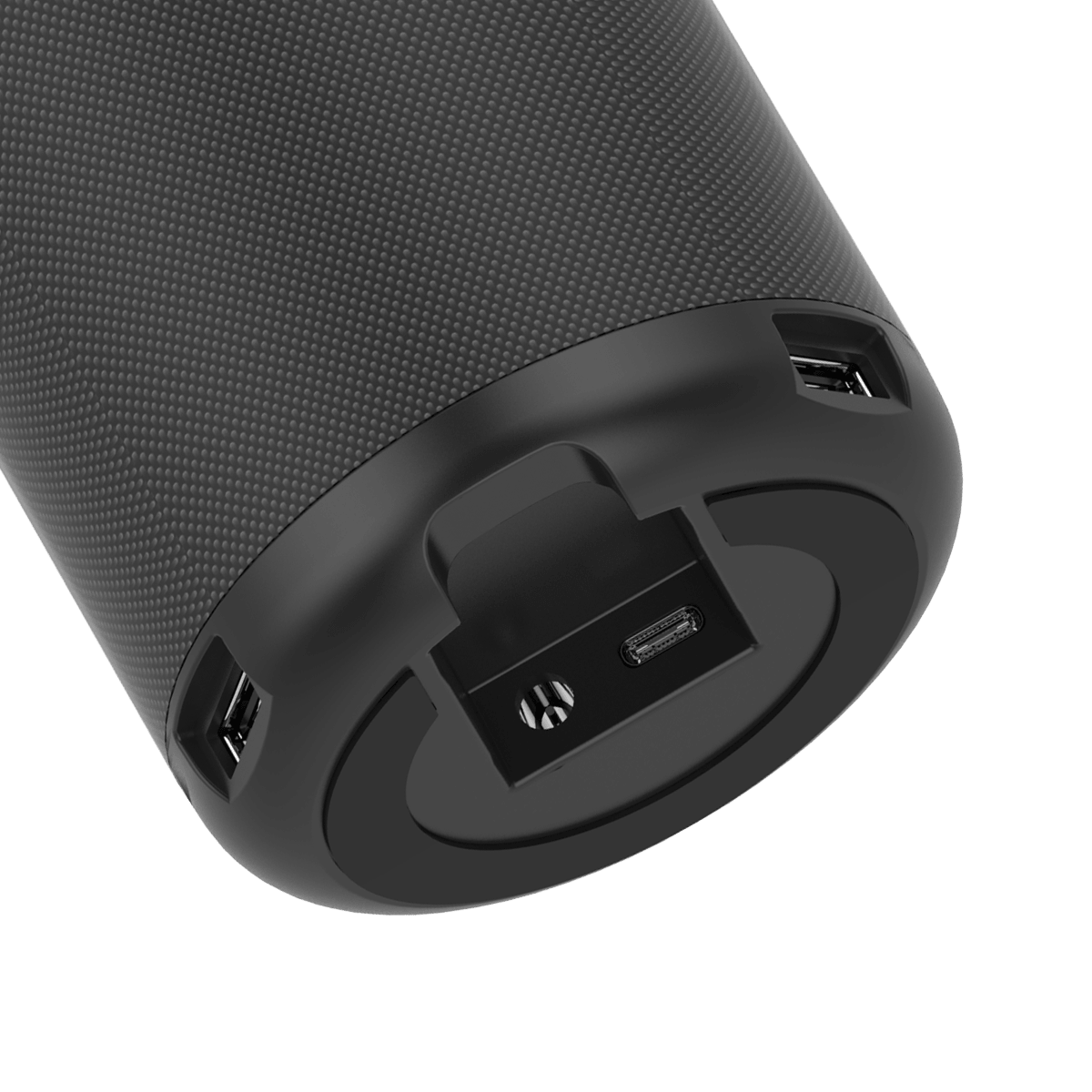
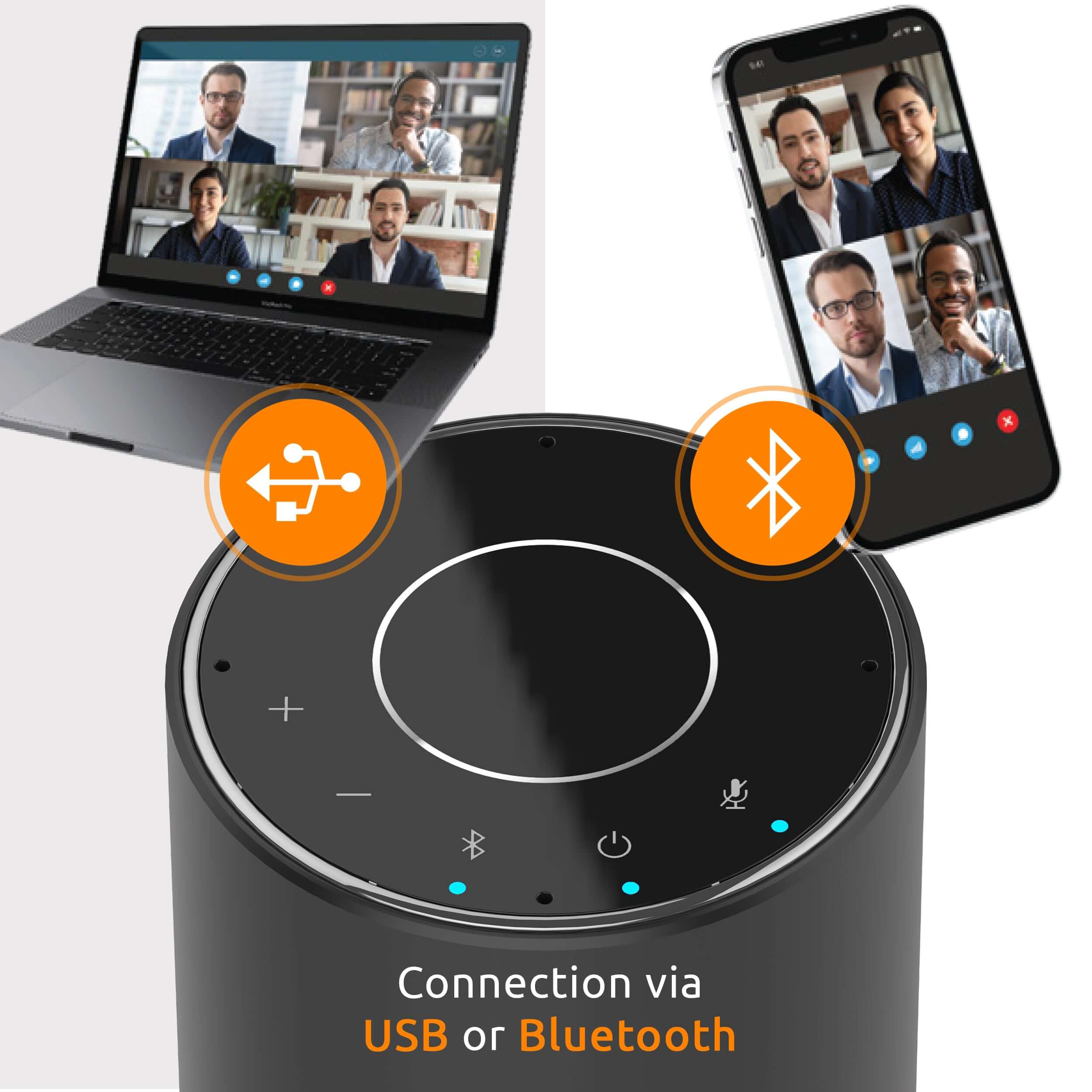
The Toucan Connect Conference Speaker can be connected either via the included USB cable or via Bluetooth 5.0, to give you excellent sound quality and convenience.
FOR HOME OR OFFICE USE:
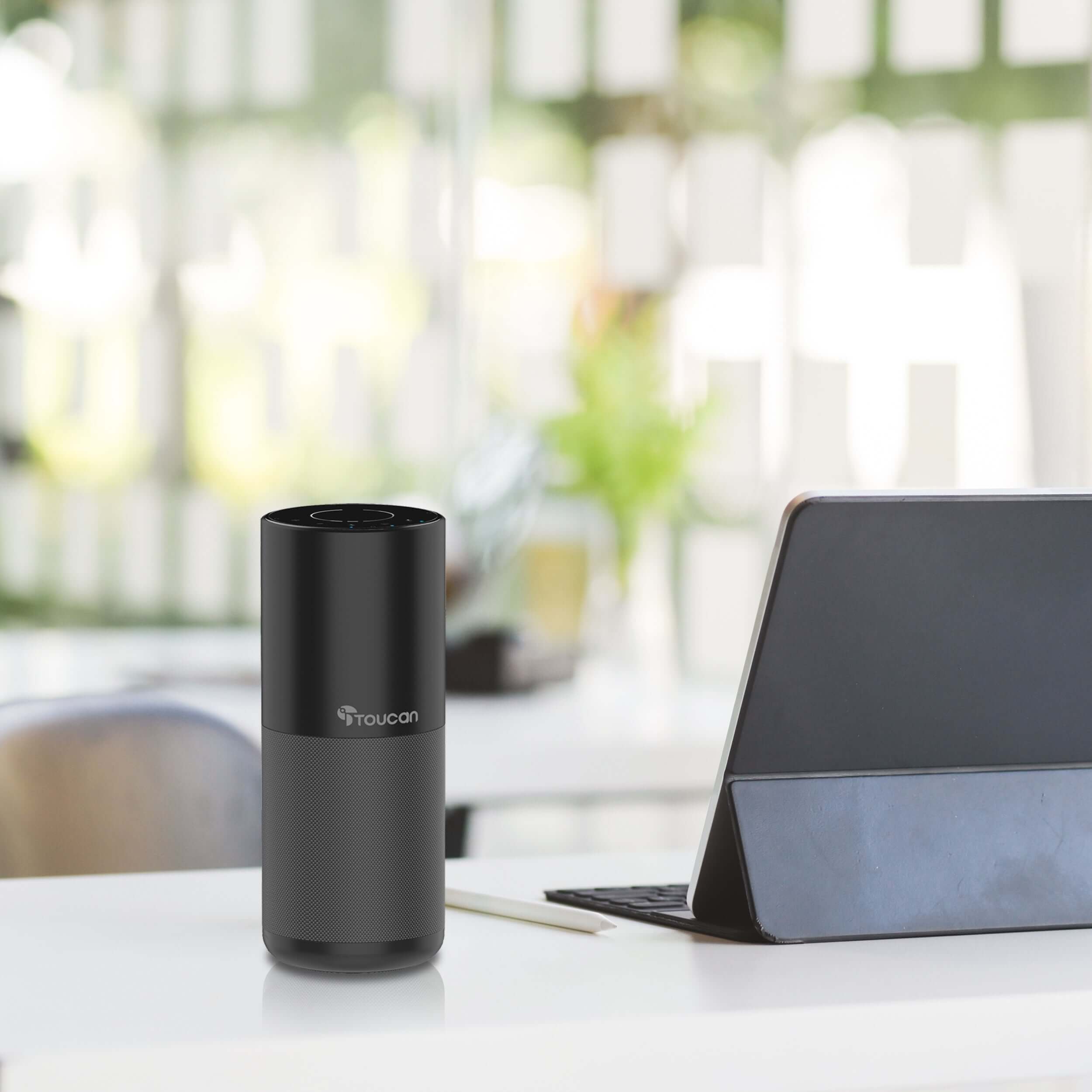
Perfect for your home office or office conference room, the Toucan Connect Conference Speaker is ideal for remote work and to make any conference call with clients go smoothly with quality audio. With a small footprint of only a few inches across, It fits on any desktop or conference table.
BLUETOOTH AND USB ENABLED:
Connect the speaker via Bluetooth 5.0 or USB cords, depending on your needs. This conference-quality speaker is easy to use and intuitive, meaning you can focus on your meeting without having to stress about whether the technology will perform.
SIMPLE TO INSTALL AND USE:
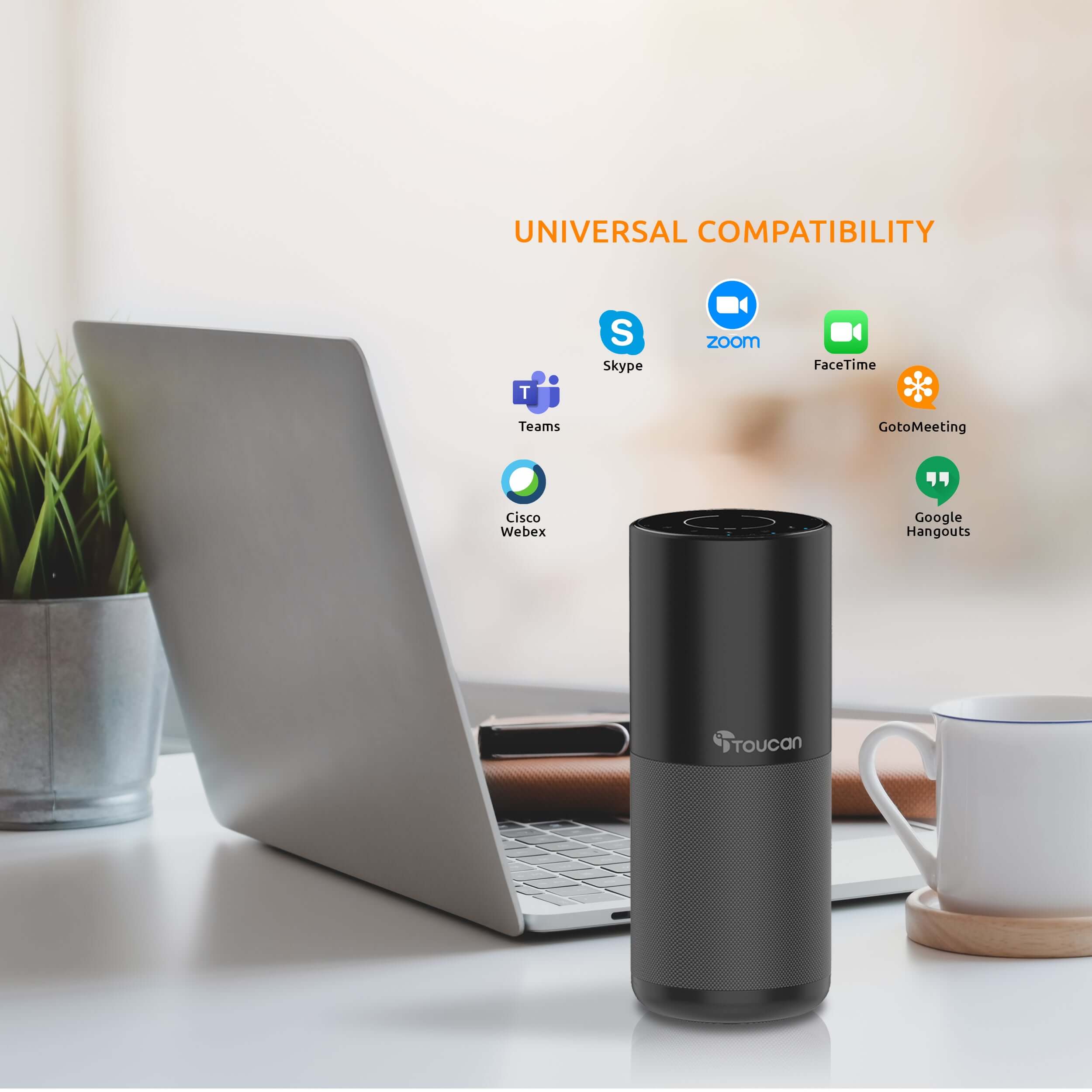
Connect your Toucan Conference Speaker to your Smartphone or tablet via Bluetooth or to your computer via Bluetooth or USB. The simple plug-and-play interface is intuitive and easy to use, and requires no downloads or drivers to use.
Included in the Box

Speaker

Cables

Manual


Testimonials
Where experience meets satisfaction

FAQs
Please read our FAQs page to find out more.
How to pair via QR code?
Please check out our video on how to pair our camera that is using QR Code to our Toucan Smart Home App.
Watch the how-to video here: https://youtu.be/Pk1gjAyNHk8
Why can't I connect my camera to Wi-Fi?
Our cameraonly supports 2.4 GHz Wi-Fi networks. Before setting up the camera, make sure yourphone is connected to a 2.4 GHz Wi-Fi. Many routers offer both 2.4 GHz and 5 GHz bands, so it's important to select the correct one.
How do I check if my phone is connected to a 2.4 GHz Wi-Fi?
📱 For iPhone (iOS):
Go to Settings > Wi-Fi.
Tap the connected Wi-Fi network (checkmark).
If the network name includes "5G" or "5GHz", it's likely a 5 GHz network.
Switch to a 2.4 GHz network (often labeled without "5G", like "MyWiFi" instead of "MyWiFi_5G").
📱 For Android:
Go to Settings > Connections > Wi-Fi.
Tap the connected network.
Look for the Frequency or Network details.
If it says 5 GHz, disconnect and select a 2.4 GHz option.
💡 Tip: Some routers merge both bands under one name. In this case, temporarily disable 5 GHz in your router settings or move farther from the router—phones often auto-connect to 2.4 GHz at longer range.
How do I pair the camera after connecting to a 2.4 GHz network?
1. Download the camera app from the App Store or Google Play.
2. Open the app and register or log in.
3. Follow the on-screen instructions to add a new device.
4. Make sure your phone remains on the 2.4 GHz Wi-Fi during setup.
5. Enter the Wi-Fi password when prompted.
6. Proceed with pairing—your camera will now connect to the network.
I am looking for a security camera made in the USA. Where are your products made?
We are a US Corporation based in So. Calif. Our security cameras are manufactured in Vietnam. However all other aspects are here in the USA, including our cloud servers and customer service.
Didn't find your answer?
Click the link below, and one of our agents will be happy to assist you!